
Step 24: Compare the estimate with what happened
Do this
- Open Reports.
- Under Costs: estimated and actual, type each invoice in the Actual (invoice) boxes.
- Read the total and the difference.
- Press Print or save as PDF, Report CSV or Tickets CSV for the file.
- Press Load all jobs to see every job on one table.
On Reports, the estimate you saved sits beside the weigh tickets and Costs: estimated and actual. Type what each invoice says for material, trucking, old asphalt and anything else, and the difference shows line by line. Nothing in the actual column is worked out from the plan: a blank stays not entered, a 0 means the cost really was nothing, and the actual total appears only once every cost the estimate expected has an invoice figure. The cost per ton delivered appears once the order is nearly all delivered.
Report CSV downloads the job report, and Tickets CSV downloads every ticket (voided ones marked), with the haul and the time at the job worked out. Print or save as PDF opens the report as a page laid out for the printer, where your browser offers Save as PDF. Load all jobs shows every saved job with its estimate, its actual total and the tons its tickets delivered, with totals over the jobs that have a full set of actuals.
What this report cannot say lists what is missing: no estimate saved, no actual costs entered yet, tons past the order.
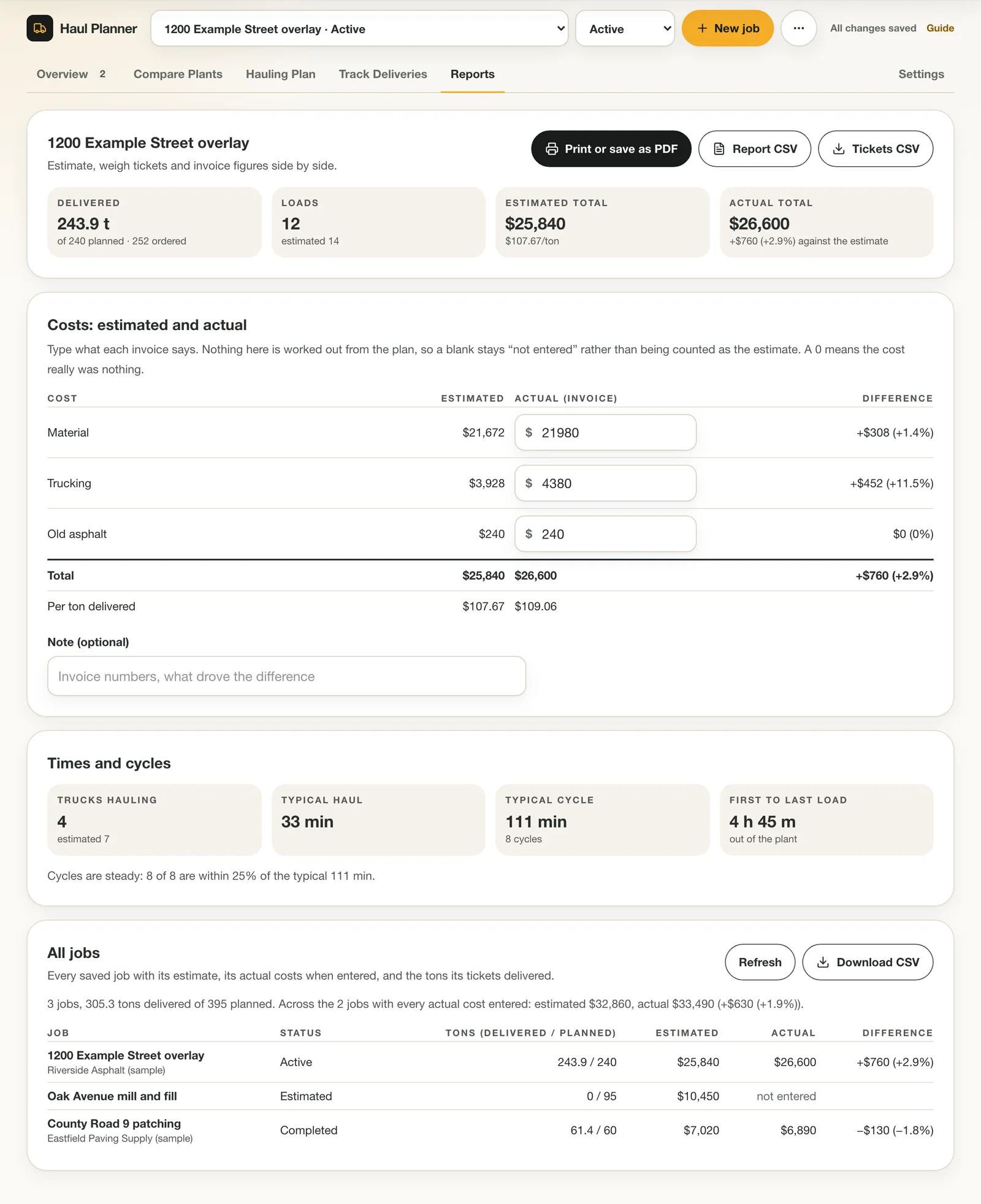
Reports: the estimate against your invoices, downloads, and every job on one table. 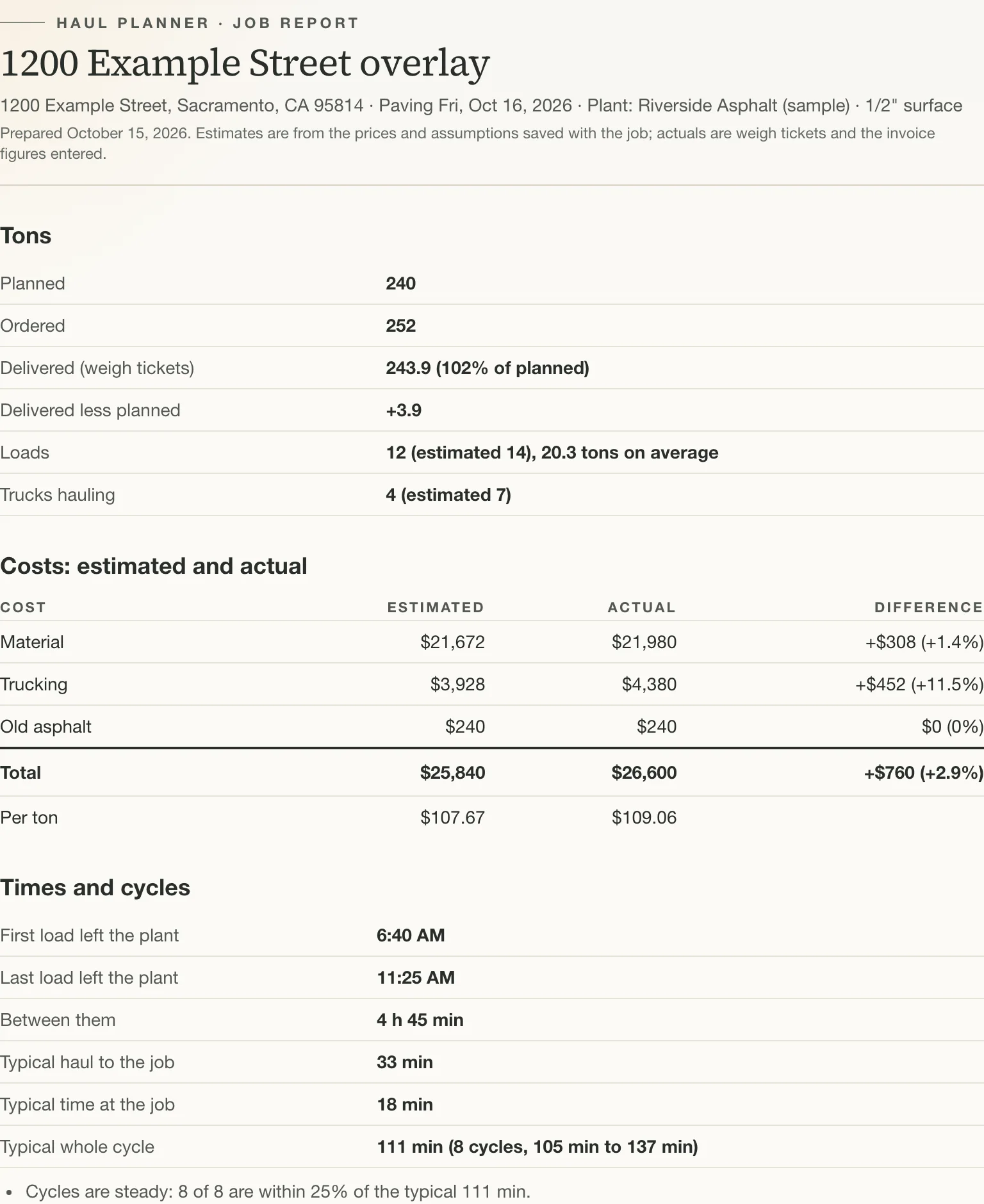
The printable report: save it as a PDF for the file or the customer. Tips
- The invoice figures are yours. The report never fills one in from the estimate.
- Printed ticket prices are offered as a hint for the material line, never applied for you.
Step 25: Tell us what to build next
Do this
- Open Settings and scroll to What should we build next?
- Tick what would help, add a note and press Send.
Under Settings, What should we build next? lists ideas for the Haul Planner. Tick what would help you most and add a note about what slows you down when you price or run trucking. We read every answer.
Sending again replaces your last answer, so you can change your mind.

Tell us what is missing. The tool is built around how contractors really haul.
Report: common questions
How do you compare an asphalt estimate with the actual job cost?
Line up the saved estimate (mix, trucking, dump fees) against the invoice for each line, then against the tons the weigh tickets say were delivered. The Reports tab shows estimated, invoice and difference columns for each cost, the delivered tons against the order, and the times and cycles from the day, so you can see where a job ran over.
Can I export or print an asphalt job report?
Yes. Print the report or save it as a PDF, or download the job report, the weigh tickets, or every saved job as a CSV file. Spreadsheet cells that could run as formulas are neutralised in the export.
Why is the actual total or cost per ton blank?
The actual total only appears when every expected cost has an invoice figure, and the actual cost per ton only appears once at least 95% of the ordered tons are delivered. The report never fills a blank from the estimate: a blank means not entered, and a zero means the cost really was nothing.
Ready to try it on your next job?
Included free with a Pro, Featured or Sponsored listing, or $14.99/month ($149/year) on its own.
Open the Haul Planner