
Step 1: Start with a job
Do this
- Open the Haul Planner. You land on Overview.
- Press New job in the bar at the top. (Or type an address and tons into Quick comparison and press Compare plants to price an address before it is a job.)
- Give the job a name. As it moves along, set its Status: draft, estimated, scheduled, active, then completed.
- When the next job looks like this one, use Duplicate job in the … menu. When a job is finished, Archive job.
Open the Haul Planner and you land on Overview: your saved jobs, the ones in progress, and a Quick comparison for a fast look at an address that is not a job yet. Press New job to make a job of your own, or Save as job on a quick comparison to keep it.
A job holds everything about one piece of work: its address and tons, the plants measured for it, the plant you chose and the estimate saved from it, its trucking assumptions, its weigh tickets and its report. The bar at the top switches jobs and sets a job's Status, from draft through estimated, scheduled and active to completed. Duplicate job copies a job's setup for the next one, and Archive job puts a finished one away: nothing is ever deleted.
Your work saves itself as you go, and the bar says All changes saved when it has. Close the tab and the job is where you left it.
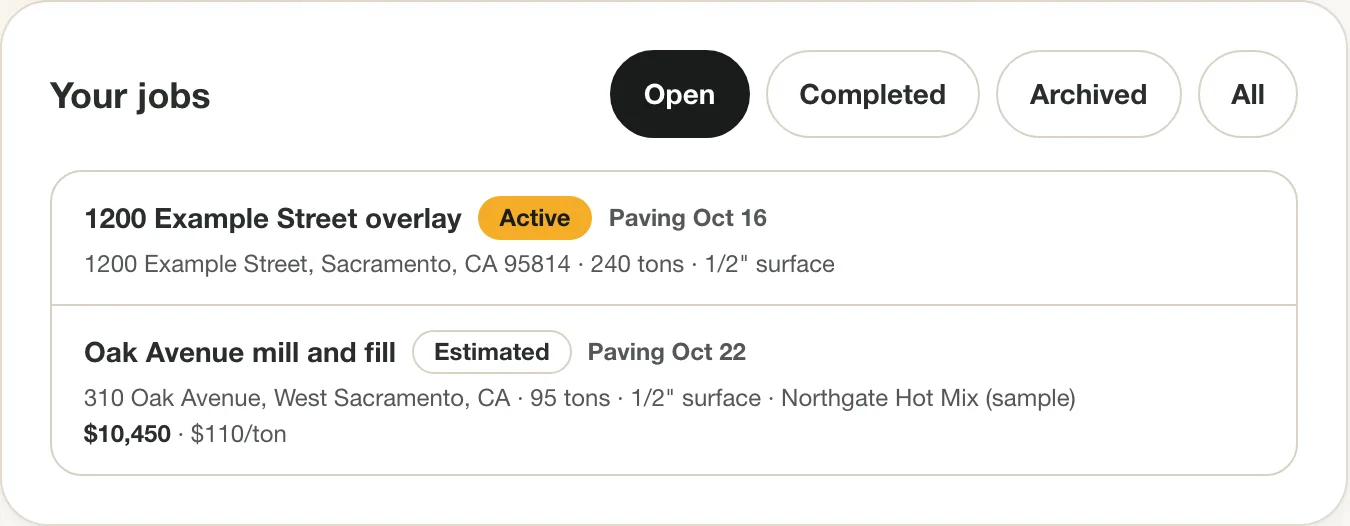
Overview: every job, its status and its paving date. Jobs keep their own numbers. 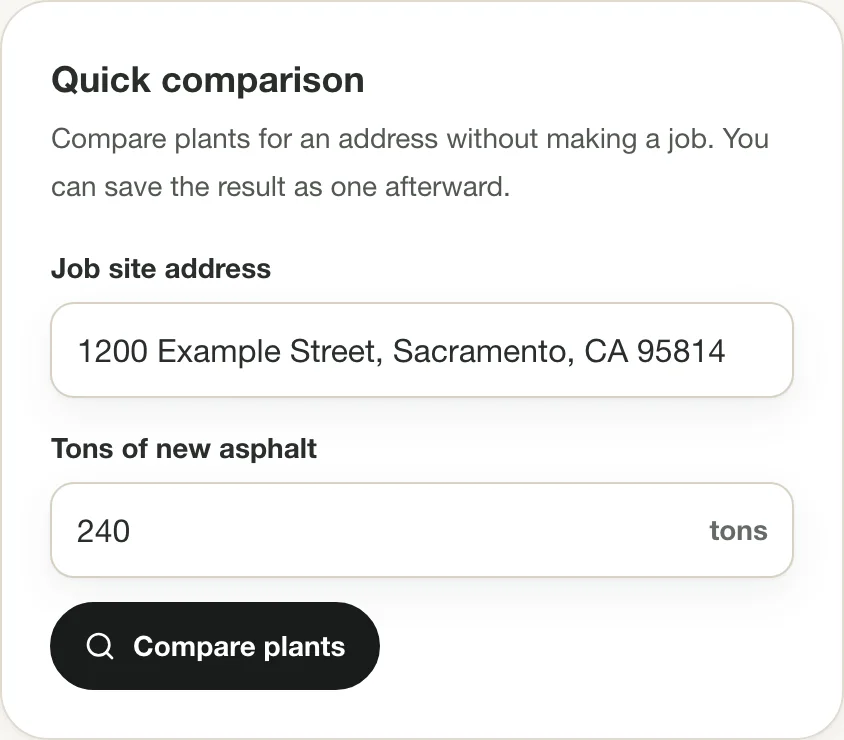
Quick comparison: price an address before it is a job. Tips
- You can keep up to 500 jobs, archived ones included.
- The tabs along the top (and the bar along the bottom on a phone) are the order of a job: Compare Plants, Hauling Plan, Track Deliveries, Reports.
Step 2: Enter the job
Do this
- Open Compare Plants.
- In This job, type the job name, set the Planned paving date, and enter the job-site address with its city and state.
- Enter the Tons of new asphalt. Don't know it? Open Don't know the tons? Figure it from square feet, enter the area and depth, and press Use this tonnage.
- Choose the Mix and Search within, and set First load on site.
- Open Advanced options and set the old asphalt to dump, Plants close at, the most trucks you'll run and the tons each carries.
On Compare Plants, fill in This job: its name, the Planned paving date, the job-site address, the tons of new asphalt, the mix, and how far to look with Search within, from 20 minutes up to what your plan allows. The planned date is what the weather forecast and the reports use.
Set First load on site, the time the paver wants its first truck. It sets the times on the dispatch sheet and decides whether the plants are still loading when you need them. Under Advanced options, set Plants close at (or tap 3:30 PM, last load 2:45 if that is how your plants run), the old asphalt to dump, the most trucks you'll run and the tons each carries, tolls and the extra to order for waste.
Don't know the tons? Open Don't know the tons? Figure it from square feet, enter the area and the compacted depth, and press Use this tonnage. It figures tons at 145 lb per cubic foot.
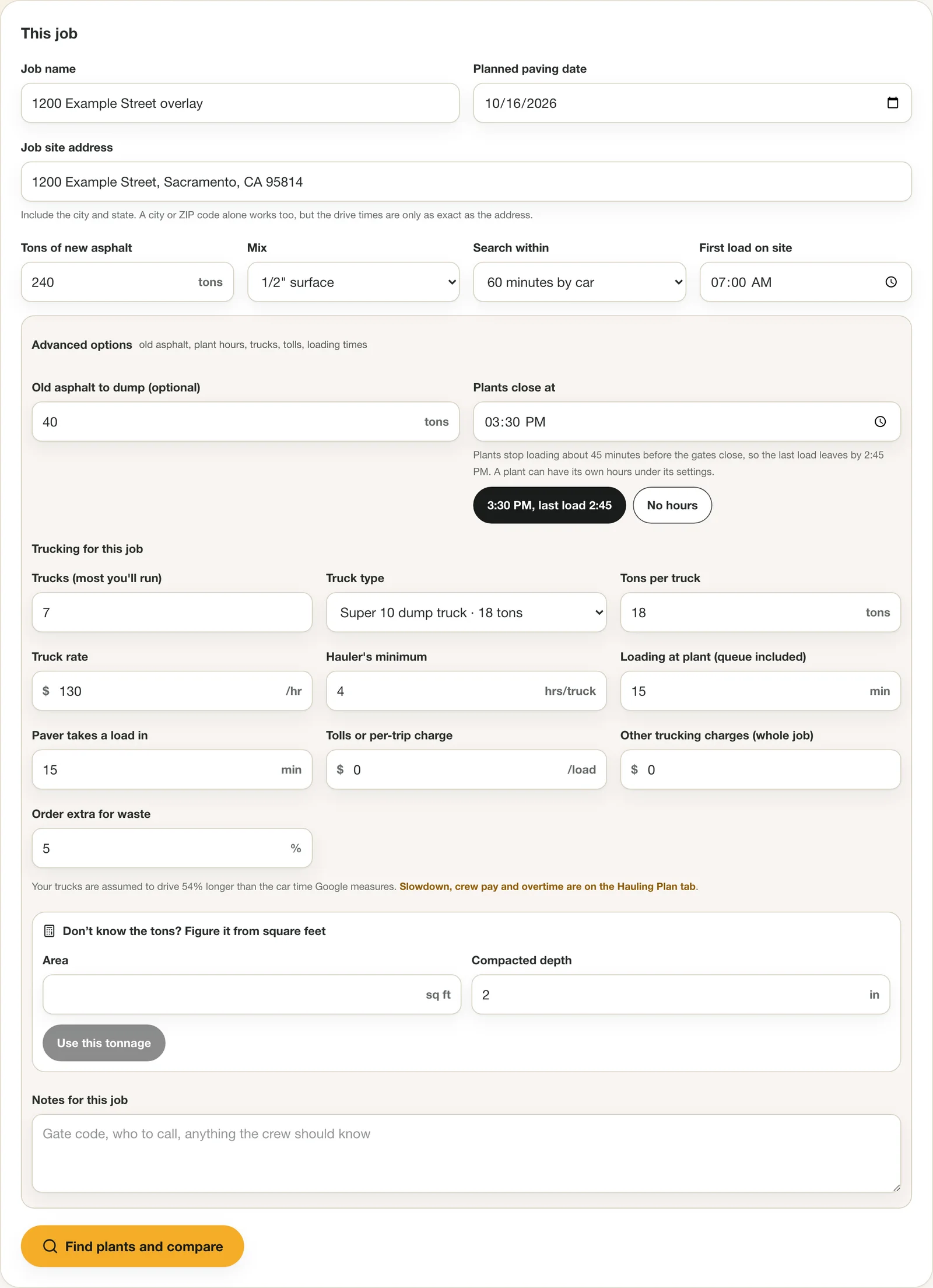
The job card. Everything here is for this job only; your defaults and prices stay saved between jobs. 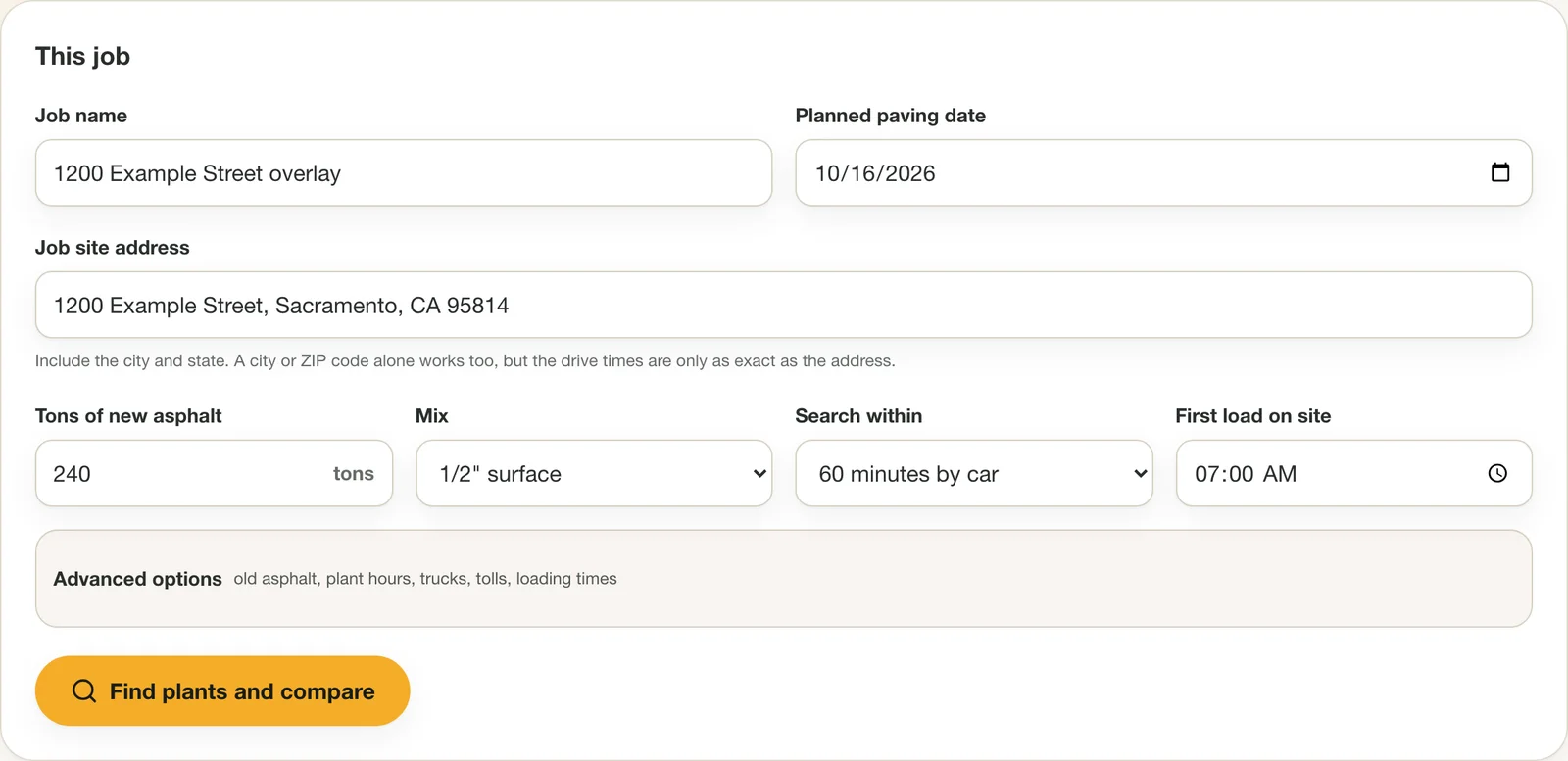
What you see first. Most jobs need only these fields. Tips
- Use the exact street address. A city or ZIP code is measured from its center, so the drive times are rougher.
- Pick the mix you are actually paving. Your price per ton is saved per mix, so you can run the same plants for a base course and a surface course.
- Leave Plants close at blank if you don't know it. The planner then assumes every plant will load at any hour.
Step 3: Find the plants
Do this
- Press Find plants and compare.
- Wait a few seconds while the road drive to each plant is measured.
- Read the list, nearest first. Each card shows the loaded-truck time, the empty trip back and the car time.
Press Find plants and compare. The planner measures the road drive time, with typical traffic, from the job to every hot mix plant in reach, plus any plants you have added yourself, and lists them nearest first.
This is the one step that costs us a lookup, so it counts against your weekly allowance. Reopening a job you have already searched is free, and so is a plant you have already measured from that address.
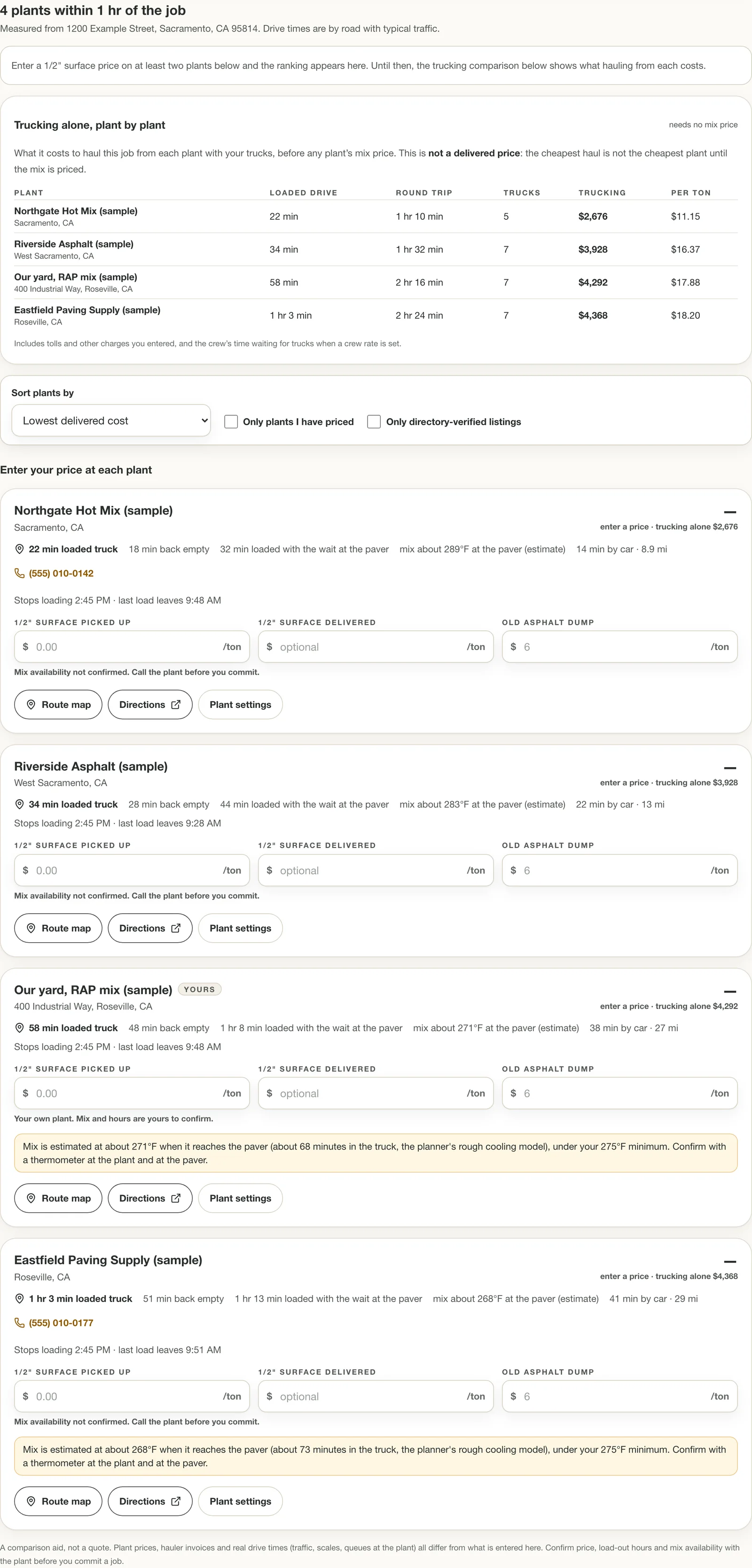
Plants found, nearest first. None is ranked yet because no prices have been entered. Tips
- Each card shows the drive time for a loaded truck, the empty trip back and the car time, because the loaded time is the one that bills.
- Tap Route map on any card to see the way from the plant to the job on a map, Directions to open it in Google Maps, or the phone number to call the plant.
Step 4: Type your price at each plant
Do this
- On each plant's card, type your price per ton picked up for the mix.
- If that plant charges to take old asphalt, type its old asphalt dump fee. Leave it blank to use your default.
- If the plant also sells the mix delivered, type that price in the delivered box.
- Click out of the box. The list re-sorts, cheapest delivered cost first.
On each plant's card, enter your price per ton picked up for the mix, and an old asphalt dump fee if that plant charges one. If you leave the dump fee blank it uses your default. A plant with no price stays at the bottom as Not ranked yet.
If a plant also sells the mix delivered, with its own trucks, type that price in the delivered box. The card then compares hauling it yourself against letting the plant deliver, and says which costs less for this job.
The ranking updates as you type. Cards hold their place while you are typing in them, then re-sort when you move on, so the list does not jump under your thumb.
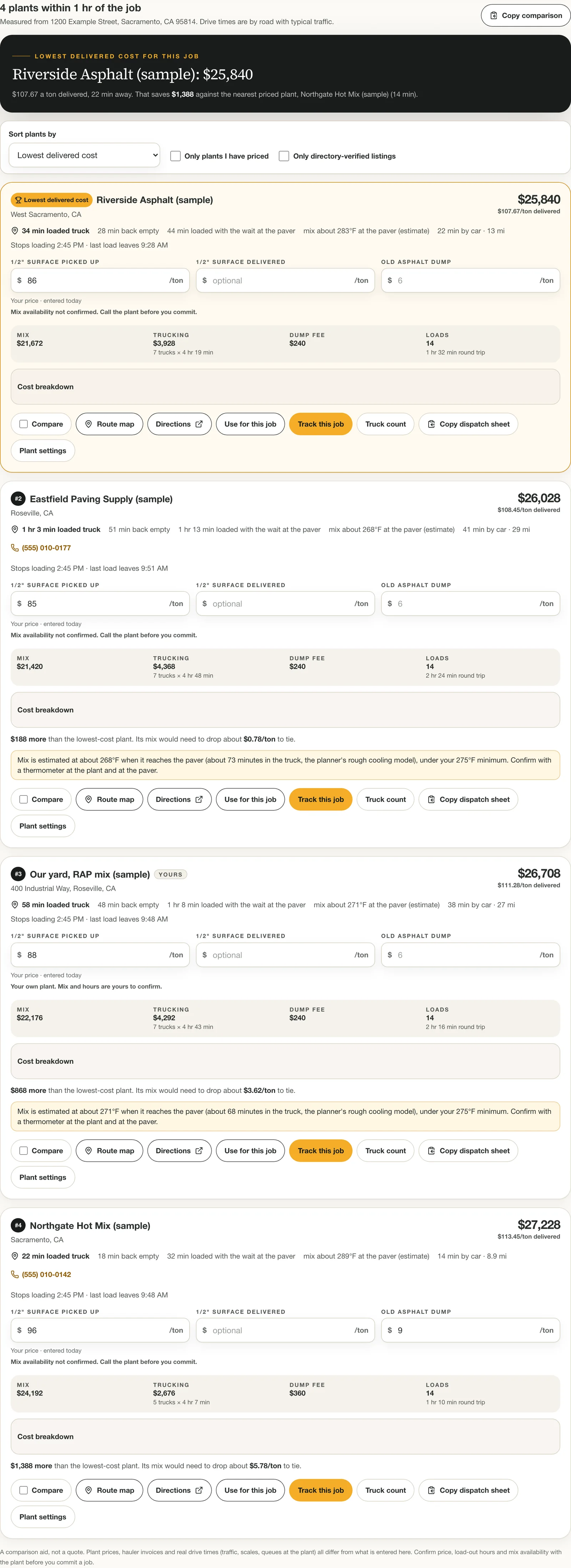
Prices in, plants ranked. The cheapest delivered cost for the job is first. Tips
- Price at least two plants. With only one priced, the banner says so, because there is nothing for it to beat yet.
- A negative dump fee is a credit, for a plant that pays for your millings.
- Each price is stamped with the day you typed it, and the card says how old it is, so a price from last spring is not mistaken for today's.
Step 5: Read the best deal
Do this
- Read the banner at the top of the results: the plant, its total, its price per ton delivered and how far away it is.
- Read the saving against the nearest priced plant.
- If the banner says it is the lowest of the plants priced so far, price the rest before you trust it.
The banner at the top of the results names the cheapest plant for this job, its total, its delivered cost per ton and how far away it is. It also says how much it saves against the nearest priced plant, which is the comparison most of us make by default.
It only claims what the list supports. With every plant priced it says Lowest delivered cost; with some unpriced it says it is the lowest of the plants priced so far and counts the rest, which could be cheaper. If none of the priced plants can load everything before it stops loading, the banner says that too.

The banner: the cheapest plant, its delivered price per ton, and what it saves against the nearest. Step 6: See where the money goes on any plant
Do this
- Open Cost breakdown on the plant at the top.
- Read any warnings under it: a long haul, a load that sits too long in the truck, mix that arrives too cool, or too few trucks.
- Check the Haul it yourself line against the plant delivering.
- Press Use for this job on the plant you choose. That saves its numbers as the job's estimate.
Every card splits its total into mix, trucking (trucks × hours billed, plus any tolls and other trucking charges), dump fee and loads, with the round-trip time per load. Open Cost breakdown for every line: when the paver would wait for trucks, a crew waiting line prices it, with the crew's day and any overtime or double time hours in it, and a short load line appears when the last load is lighter than your short-load limit. A runner-up shows how much more than the best deal it costs and how far its mix price would have to drop to tie. That figure is what you take into a call with a plant.
Warnings appear where they matter: a haul over an hour each way, a load that would sit in the truck longer than your own limit, mix estimated to arrive under your minimum temperature, or a truck count that leaves the paver waiting, with the number of trucks that would keep it moving. The card also shows the time a load sits loaded and, once you have entered the mix's leaving temperature, an estimated temperature at the paver.
Press Use for this job to make this plant the job's plant. Its numbers are saved as the job's estimate, frozen as they were, so the report can compare them with what really happened even if you change a price later. Track this job does the same and takes you to Track Deliveries.
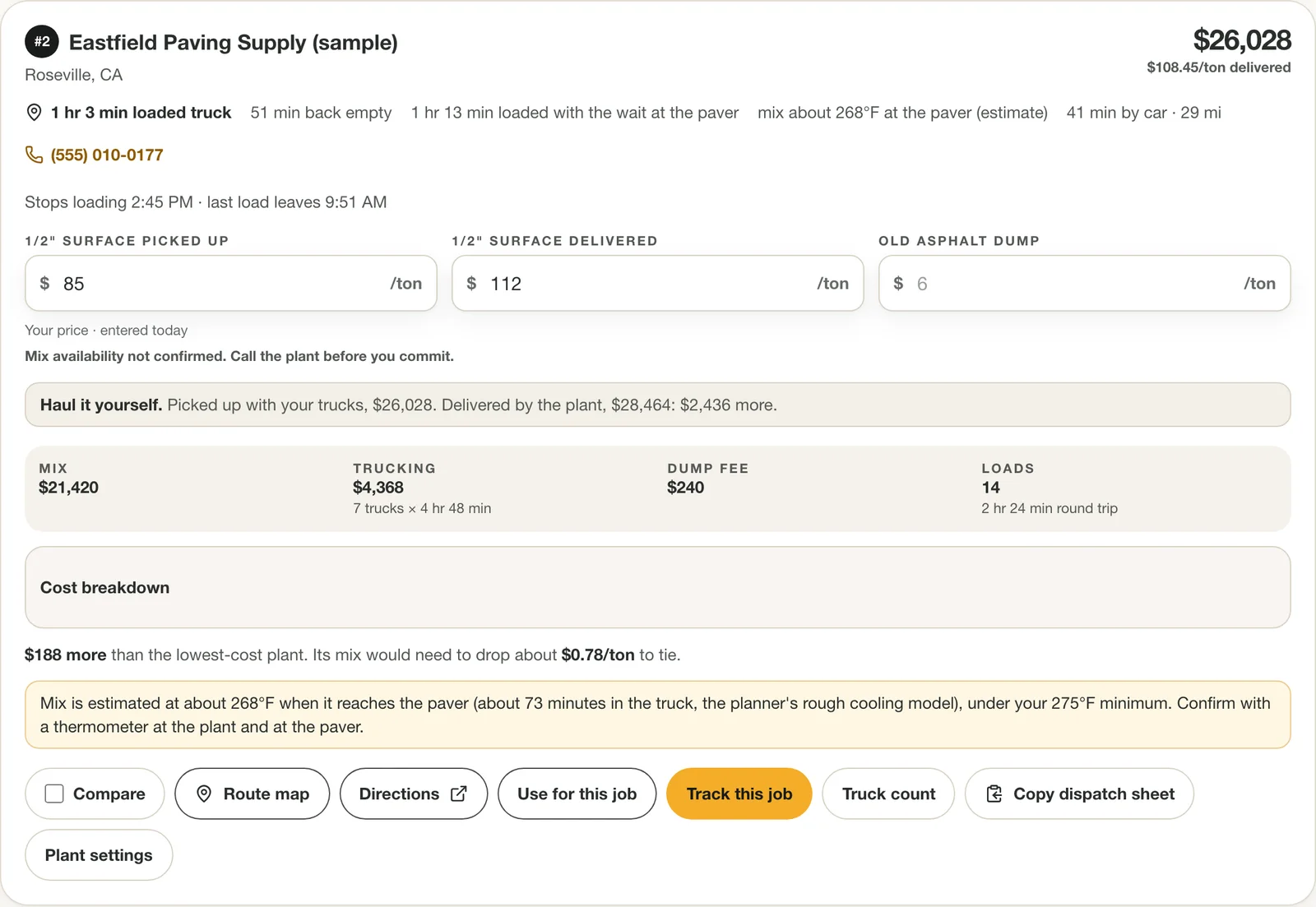
A plant's cost breakdown, the haul-it-yourself comparison, a temperature warning and what you can do with the plant. 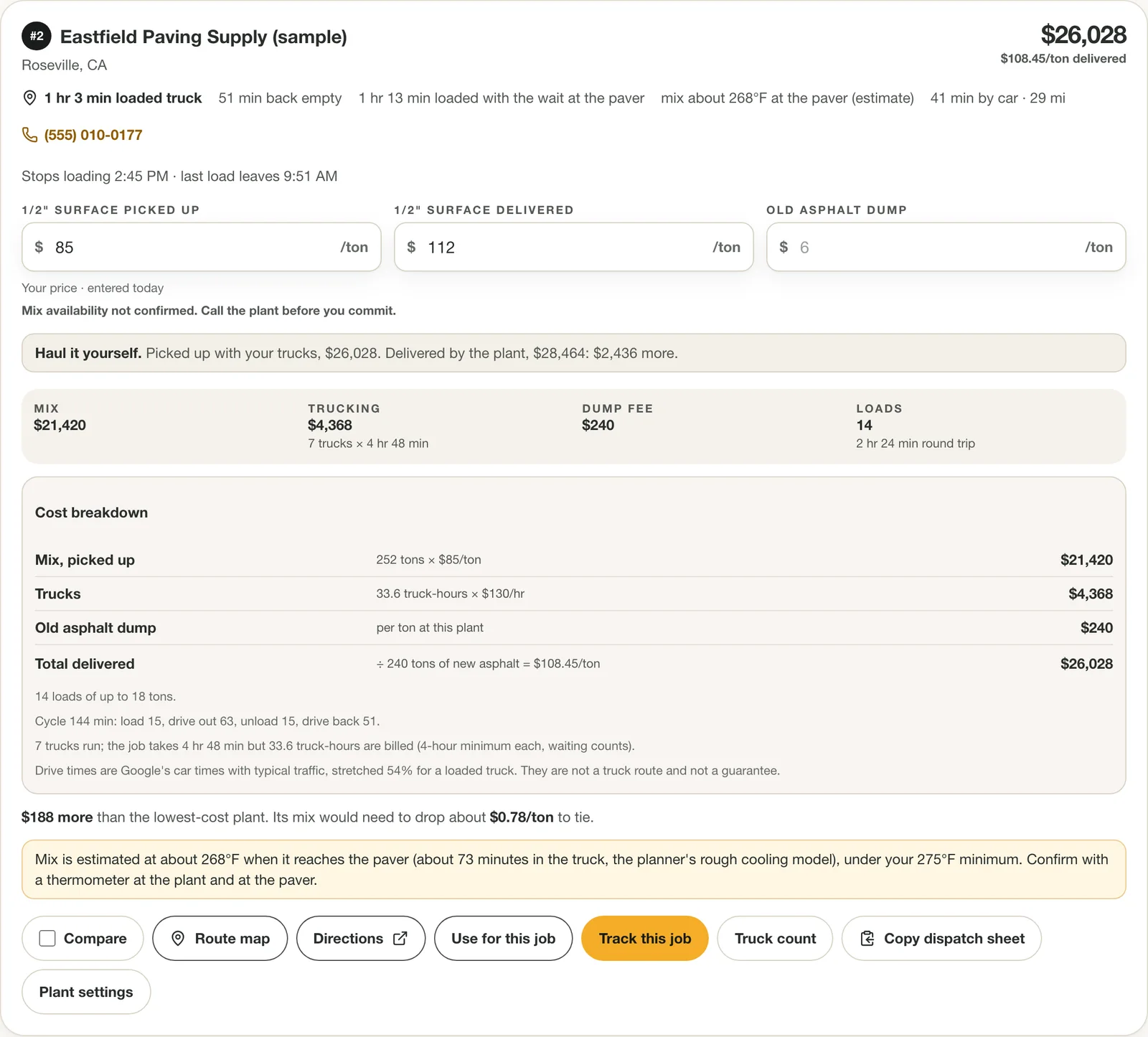
Cost breakdown: every line, and the arithmetic behind it. Tips
- The same job can cost more to haul than to buy delivered, or less. The card shows both totals so you do not have to work it out.
- The temperature figure is a rough model until you enter your own measured loss. See Check the weather and the mix temperature below.
Step 7: Check the last load of the day
Do this
- Set Plants close at under Advanced options, or set Gates close at in a plant's Plant settings.
- Read each card's Stops loading time and when your last load leaves.
- Look for extra truck to beat it or Cannot load it all today.
- Change the start time, the trucks or the plant until every load can leave in time.
Plants stop loading before the gates close, often 30 to 45 minutes before. With Plants close at set, every card shows when that plant stops loading and when your last load leaves. A long haul or a late start can mean you need more trucks just to get every load out in time, so the planner adds trucks, up to the most you said you would run, and says so: 1 extra truck to beat it.
If even your most trucks cannot get it all out, the card is marked Cannot load it all today with how many loads are too late, and it ranks behind every plant that can. Your options are an earlier start, more trucks, another plant, or letting the plant deliver.
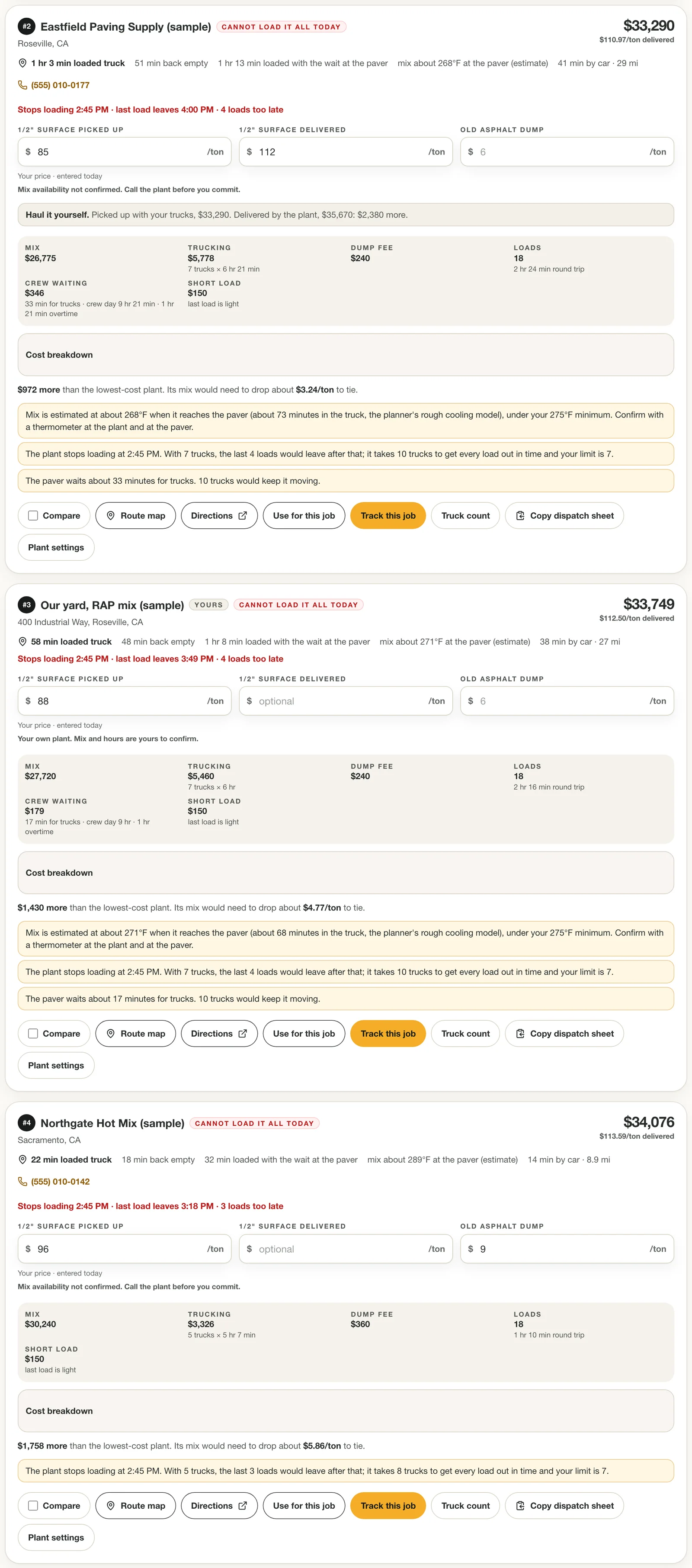
A bigger job starting at 11:30 AM against plants that stop loading at 2:45 PM: one plant needs extra trucks, another cannot load it all. Tips
- A plant with its own hours: open its Plant settings and set Gates close at. A blank box uses your default.
- Plants stop loading before close, under Slowdown, crew pay and fees, sets how many minutes early they stop.
Step 8: Try a different number of trucks and copy the dispatch sheet
Do this
- Press Truck count on a plant's card.
- Find the row marked cheapest: the fewest trucks that get every load out.
- Press Copy dispatch sheet and paste it into a text message to your haulers.
Press Truck count on a card to see the same job run with 1 truck, 2 trucks and so on. Each row shows whether every load gets out in time, how long the job takes, how long the paver waits, the trucking, your crew's day and its waiting cost, and Both, which adds the trucking and the crew's wait. The cheapest number that gets everything out is marked cheapest. Fewer trucks bill fewer hours but leave the paver and crew standing, and once the day runs into overtime or double time, standing costs more.
Press Copy dispatch sheet to copy a plain-text schedule for your haulers: for each truck, when to start loading, when to leave the plant and when to be on site, for every load, based on your first-load time. Paste it into a text message.
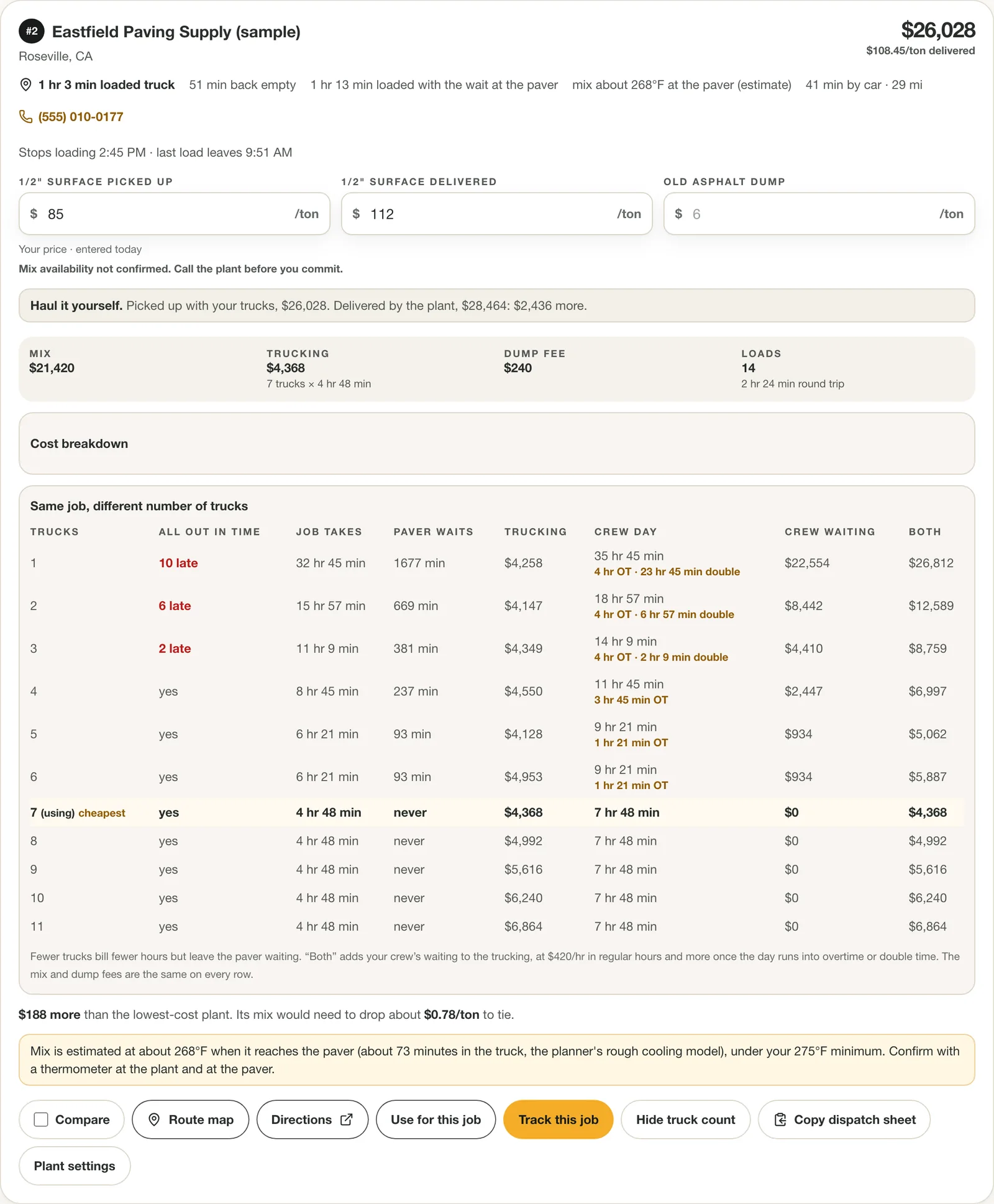
Truck count: the cheapest number of trucks that gets every load out, even though the planner was allowed more. Tips
- The table needs a crew cost (under Slowdown, crew pay and fees) to name the cheapest row. Without it, waiting looks free.
- The times on the dispatch sheet are planning estimates. Traffic and the plant's queue move them.
Step 9: Correct a plant with Plant settings
Do this
- Press Plant settings on the card.
- Fix Change location, Loading here, queue included and Gates close at.
- Tick This plant does not take old asphalt if it doesn't, and add a note and the plant's dispatch contacts.
- Press Find plants and compare again so the plant is re-measured.
Open Plant settings on a card to fix what the directory has wrong or add what you know. Change location moves the plant (paste an address, or the coordinates Google Maps copies when you right-click a spot), and the next search measures from there.
A busy plant is slower to load than a quiet one, so set Loading here, queue included for that plant, and a short-load fee if that plant charges its own. Set Gates close at if the plant's hours differ from your default.
Tick This plant does not take old asphalt and it drops out of any job with a dump, rather than quoting a dump fee it can't charge. Add a private note (scale hours, gate, who to call). Hide this plant from my searches removes one you never buy from; hidden plants are listed lower on the page with a Show again button.
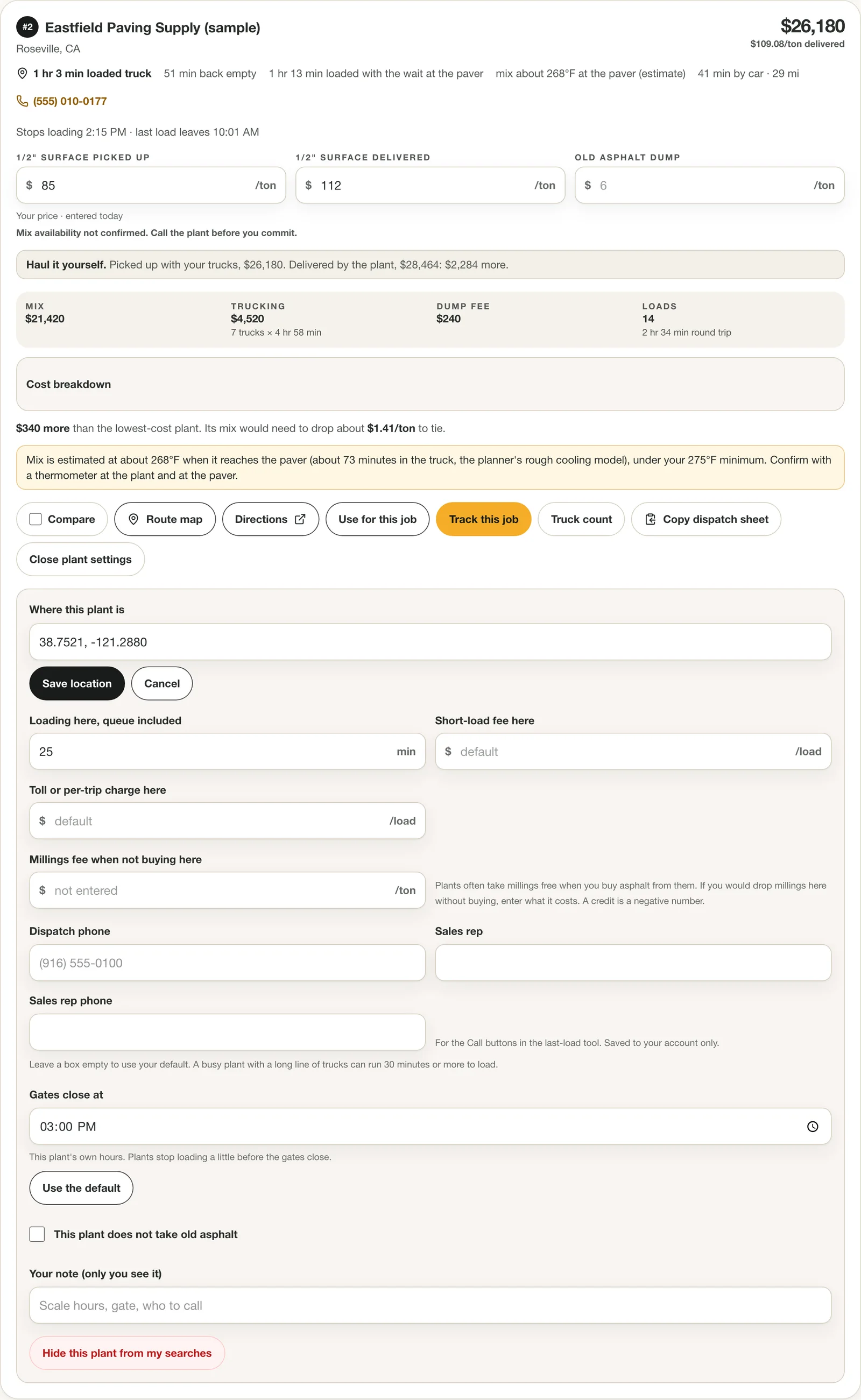
Plant settings: location, loading time, hours, old asphalt, contacts, a private note, and hide. Tips
- After moving a plant, search again. Its drive time is only re-measured on a new search.
- Your notes, hours, contacts, edited locations and hidden plants are private to your account.
Step 10: Add a plant the directory doesn't have
Do this
- Open Settings.
- Under Your plants, type the plant's name, phone and address or coordinates, and add it.
- Search again. It is measured and ranked like any other plant.
Under Settings, in Your plants, add your own yard, a supplier you buy from, or any plant that is not in the directory. Give it a name, an optional phone number, and an address or coordinates. It is measured on the next search, ranked like any other plant, and keeps its prices from job to job.
You can keep up to 30 of your own plants on a listing plan (10 on the standalone subscription).
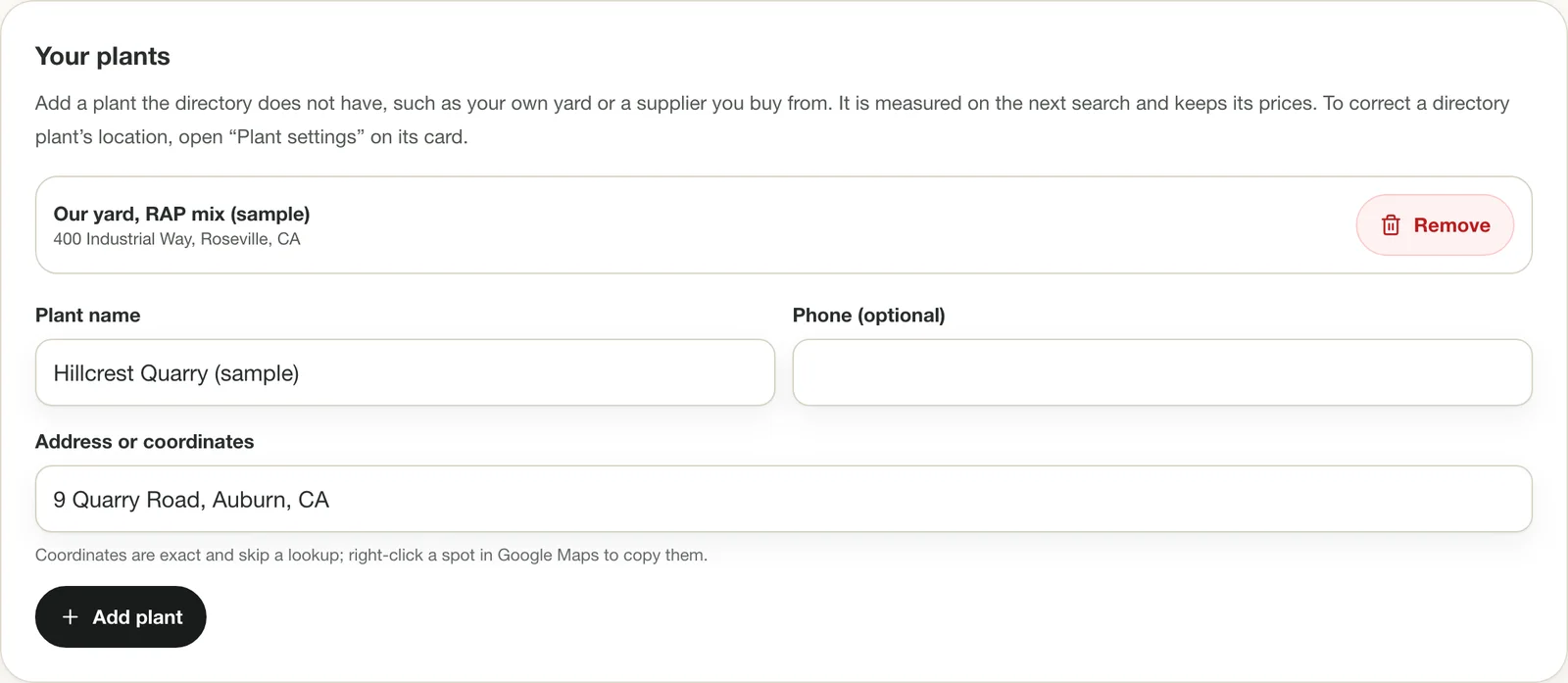
Your plants: add your own yard or a supplier the directory is missing. Tips
- Coordinates skip an address lookup and are exact, which helps for a yard on an unmarked road.
Compare plants: common questions
How much does asphalt delivery cost?
Delivered cost is the mix price plus the trucking to haul it, and trucking depends on the haul time and how your hauler bills. In the Haul Planner's sample job, trucking is $3,928 on 252 tons, about $15.59 a ton, for a 22-minute haul with seven trucks billed by the hour. Your figure will differ with the distance, the hourly rate and the hauler's minimum hours: enter yours and the planner prices every plant the same way. For what plants charge per ton, see our asphalt price per ton guide.
Is the nearest asphalt plant the cheapest?
Not always. A plant a few dollars a ton cheaper can win even when it is farther away, until the longer haul, which is billed by the hour, outweighs the saving. In the sample job the plant 22 minutes away costs $1,388 less delivered than the nearest priced plant at 14 minutes. The planner ranks every plant on the total for the job, not on price per ton or distance alone.
What does a delivered cost comparison include?
For each plant: the mix (tons ordered × your price per ton), the trucking (trucks × hours billed × your hourly rate), the cost of the crew waiting if trucks cannot keep the paver fed, any short-load fee, and the old-asphalt dump fee. It leaves out fuel unless it is in your rate, tax, and any overtime your hauler bills, so use it to compare plants against each other, not as a bid figure.
What is the difference between a picked-up price and a delivered price?
A picked-up price is what the plant charges when your own trucks collect the mix. A delivered price is what it charges to bring the mix to the job. Enter both and the planner shows the total each way for this job and ranks the cheaper one.
How do I find hot mix asphalt plants near a job site?
Enter the job-site address and the planner measures the road drive from the job to every hot mix plant in reach, with typical traffic, and to any plant or yard you add yourself. If you only need a list of plants by location, the free asphalt plant finder shows them by state and area.
Ready to try it on your next job?
Included free with a Pro, Featured or Sponsored listing, or $14.99/month ($149/year) on its own.
Open the Haul Planner