
Step 18: Know when to order the last load
Do this
- Open Track Deliveries and then Last load.
- Under Plant, hours and notice, check the plant, when its gates close and the notice it needs.
- When the paving is nearly done, measure what is left under How much is left? in feet.
- Choose a cushion and the rounding.
- Press Copy the order and send it, then press I placed the order.
On Last load, set the plant's hours. The countdown works back from when the plant stops loading: the time to load, the time for a truck to get back from the job, and the notice the plant wants for an order. It warns you before the Order by time (Warn me this far ahead sets how soon), and a banner stays on screen while the order is close.
Under How much is left?, measure what is still to pave in feet, add a section for each patch, and the card works out the order: area times thickness, any tons already on the way or in the paver taken off, a cushion you choose, rounded up to the half ton or the ton. It shows what the cushion costs, and Copy the order copies the message to send.
Add the plant's dispatch phone and your sales rep under Who to call, and a Call button appears beside the order and on the countdown. I placed the order stops the warning.
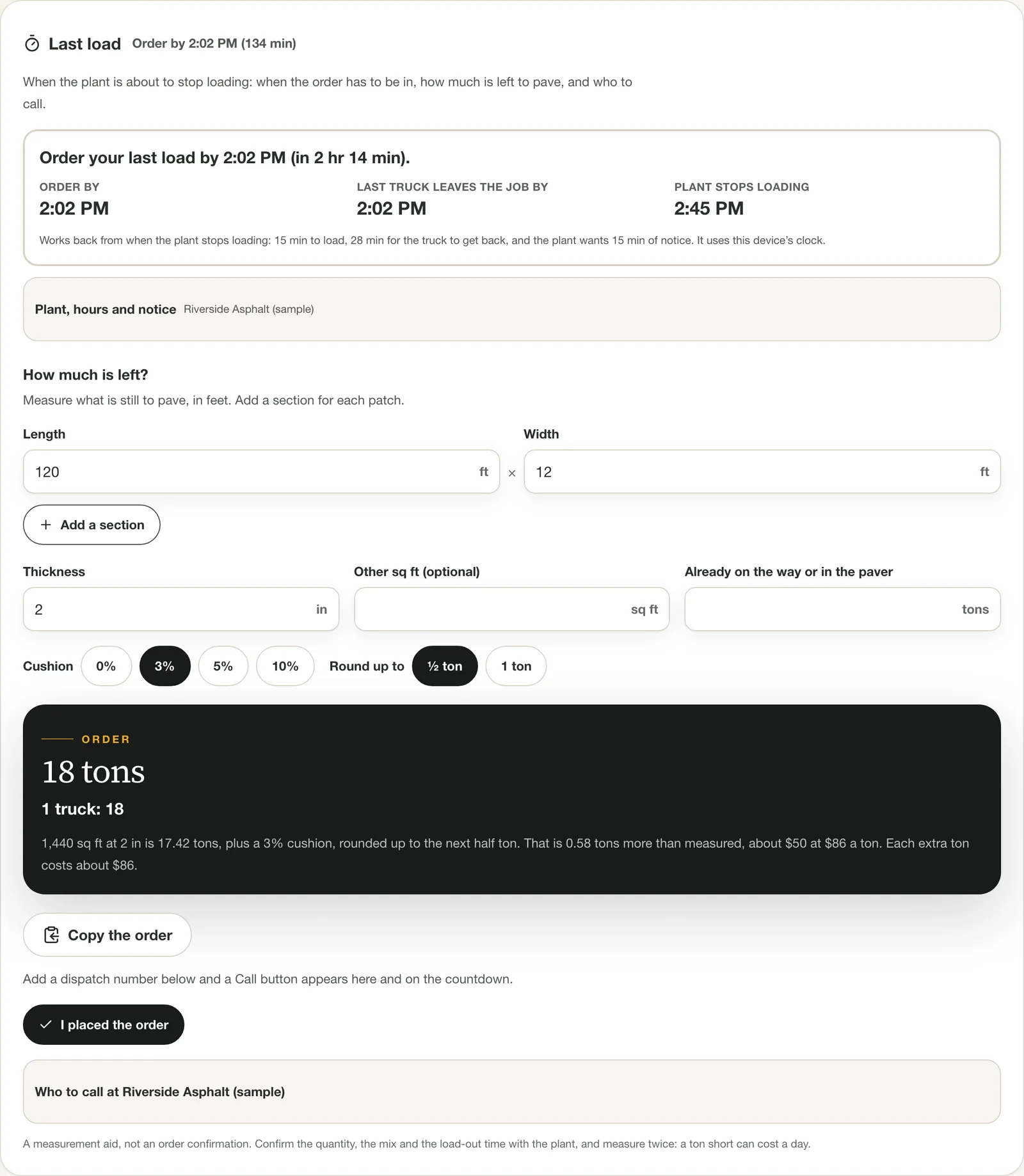
Last load: when the order has to go in, and how much to order. 
The last-load banner follows you onto every tab as the order-by time gets close. Tips
- It uses the device's own clock.
- A measurement aid, not an order confirmation. Confirm the quantity and the load-out time with the plant, and measure twice.
Step 19: List your trucks and drivers
Do this
- Open Track Deliveries and find Your trucks and drivers.
- Press Add a truck and enter the name or number, the plate and the driver.
- Add the truck type, the tons it carries and what it costs an hour if you want the planner to use them.
Under Your trucks and drivers, press Add a truck and enter it the way its tickets name it: the truck name or number, the plate state and license plate, the driver and the driver's phone. Add its truck type, the tons it usually carries and what it costs per hour if you want the planner to use your fleet.
A scanned ticket is matched to a truck by its license plate or number, so the tons and round trips land on the right truck, and the driver's number is one tap away when a truck is late.
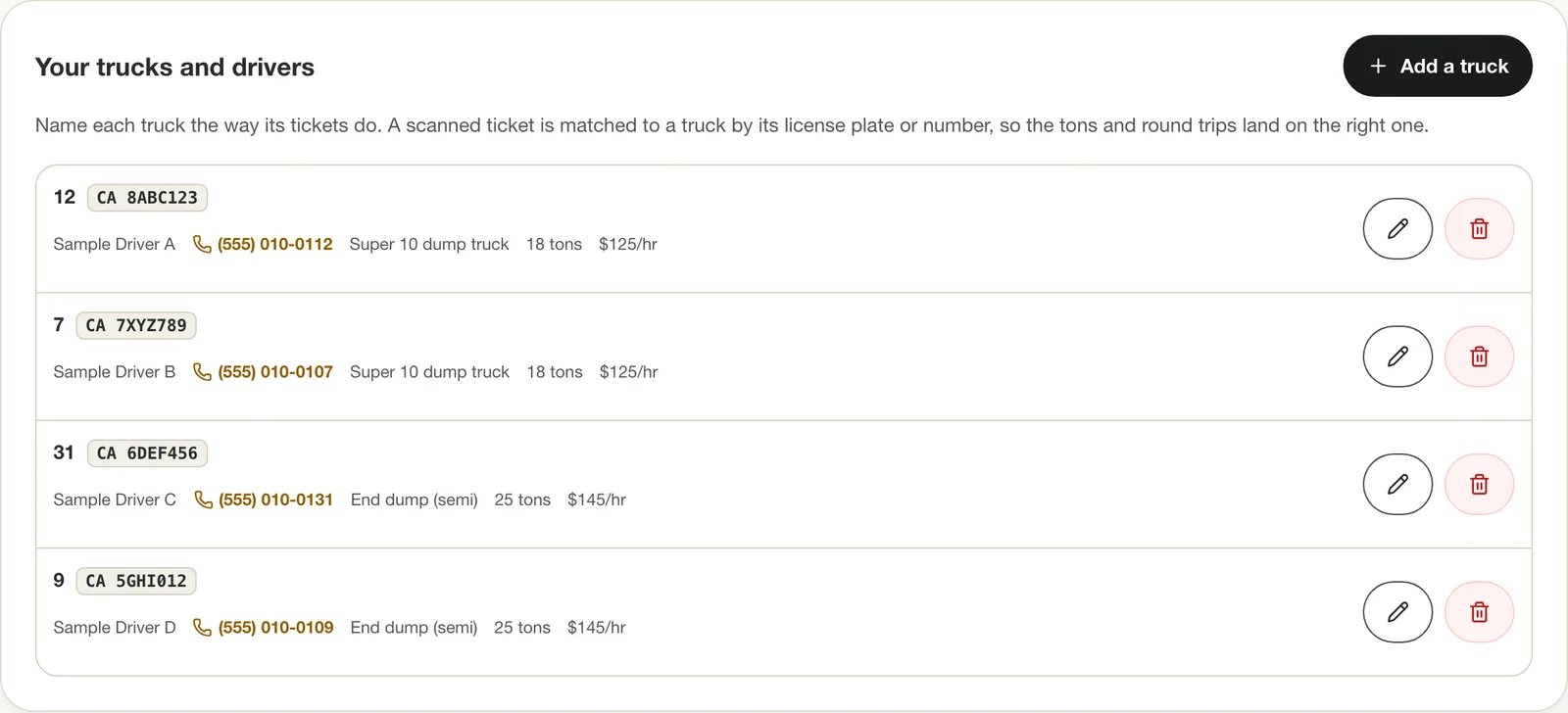
Your trucks and drivers, kept for every job. The names and plates here are samples. Tips
- You can keep up to 30 trucks.
- "Truck 7", "Unit #7" and "7" are the same truck. Use whichever your tickets print.
Step 20: Scan or type each weigh ticket
Do this
- Press Scan ticket and photograph the weigh ticket, or press Add by hand.
- Check every number against the paper. Change the unit if the ticket prints pounds.
- Press Save ticket.
- If it warns that the ticket is already in, tick the box only if it really is a different ticket.
- To correct or remove one later, use Edit or Void on its row.
Press Scan ticket and photograph the scale ticket, or Add by hand. The scan reads the net weight, the ticket number, the time the load left the plant, the mix temperature when the plant prints it, and the truck, and fills in the form so you can check every number before pressing Save ticket. Nothing is saved until you do. The weight can be tons, pounds, metric tonnes or kilograms.
The photo is read on your phone. When you save the ticket, the photo is kept with it, in storage only your account can read, so you can open it later; the first scan downloads the reading engine, about 10 MB, so do it on Wi-Fi. Attach a photo without scanning keeps a picture of a ticket you typed in.
A ticket with the same number, plant and day as one already in is stopped until you say it is a different ticket, so a load is not counted twice. A wrong ticket is voided with a reason, never deleted: it stops counting, keeps its photo and its history, and can be restored.
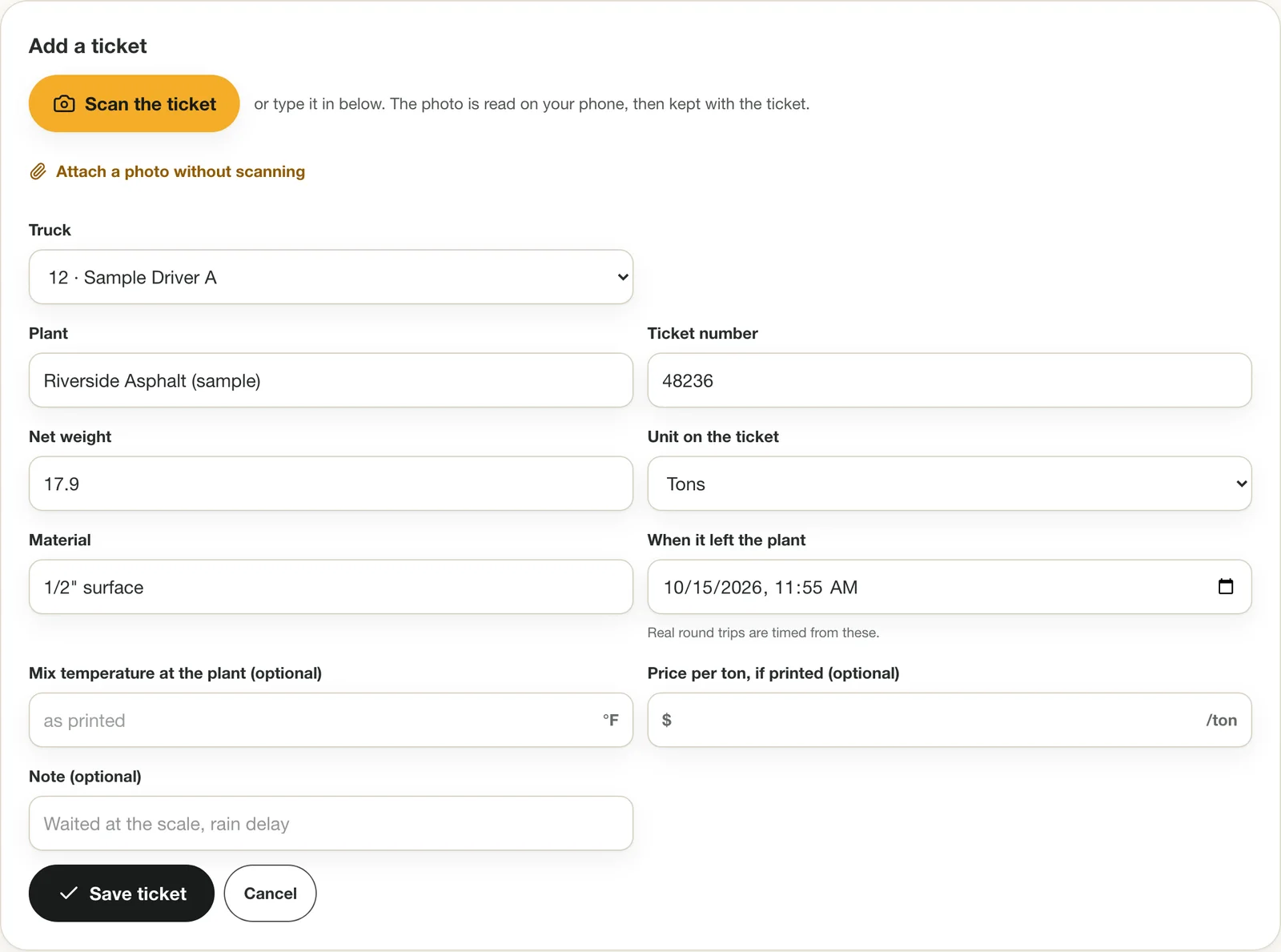
Add a ticket: scan it or type it, check it, and save. The time it left the plant is what times the round trips. 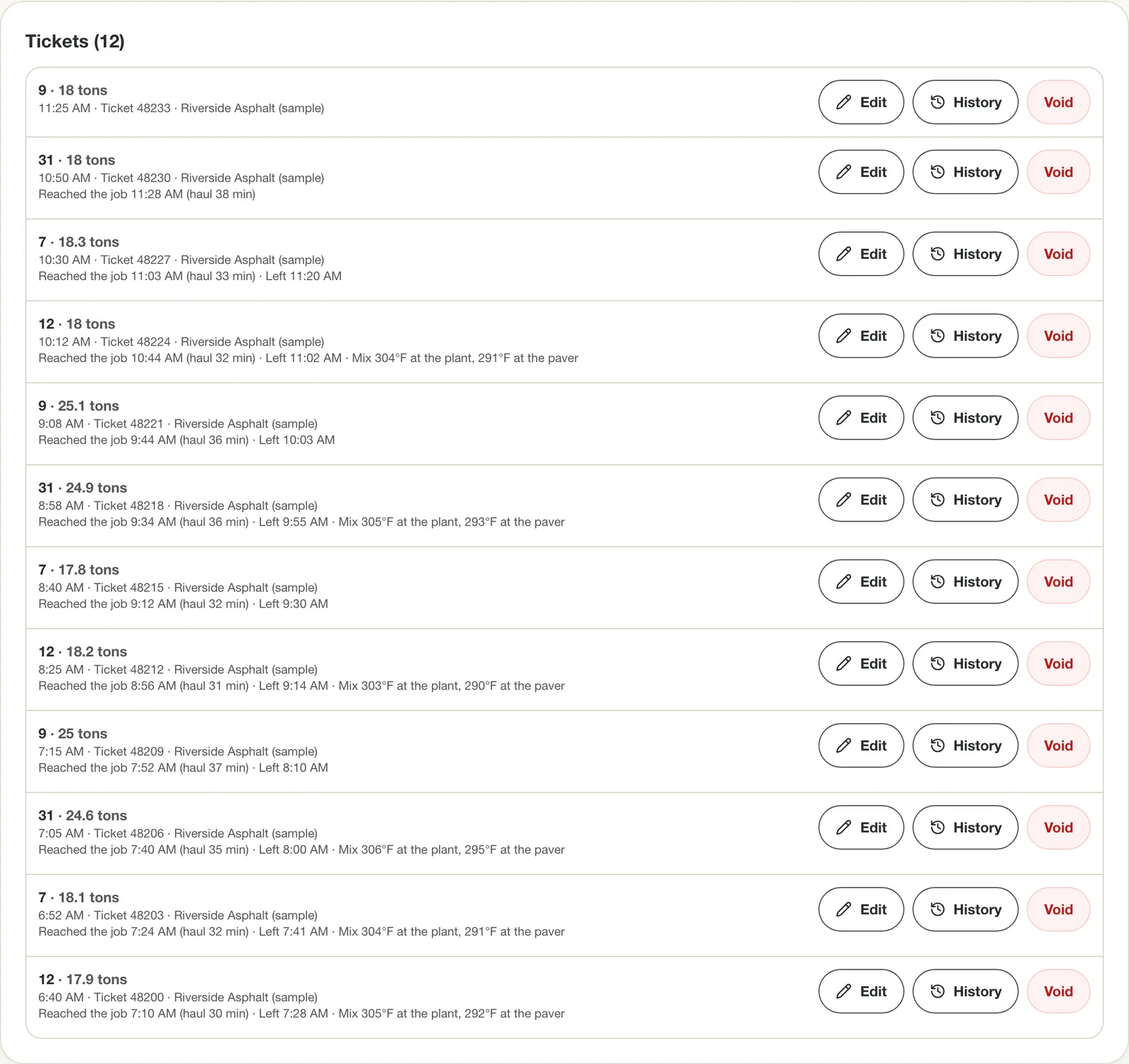
The ticket log: correct, view the history or void, never delete. 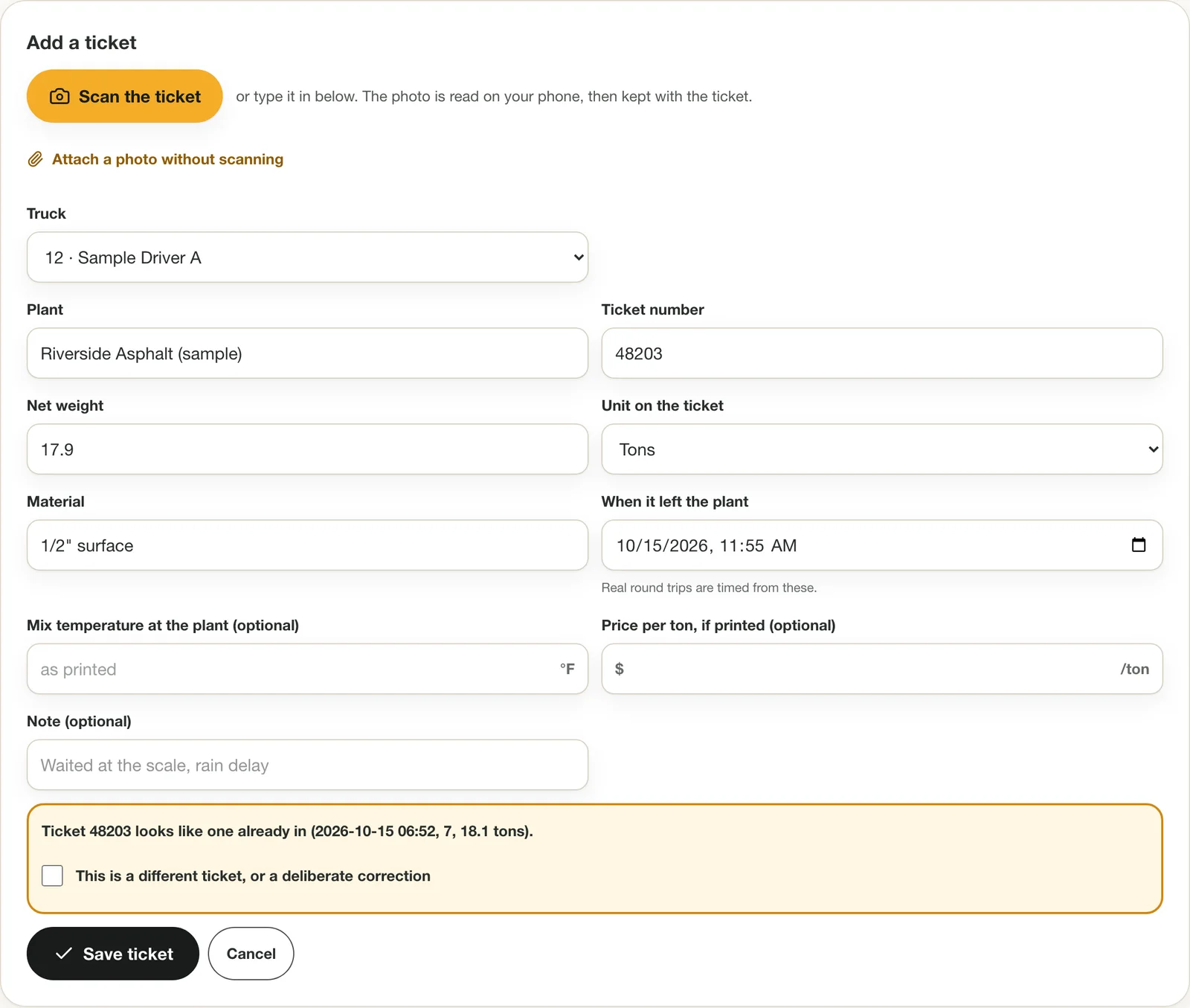
A repeat is stopped until you say it is a different ticket. 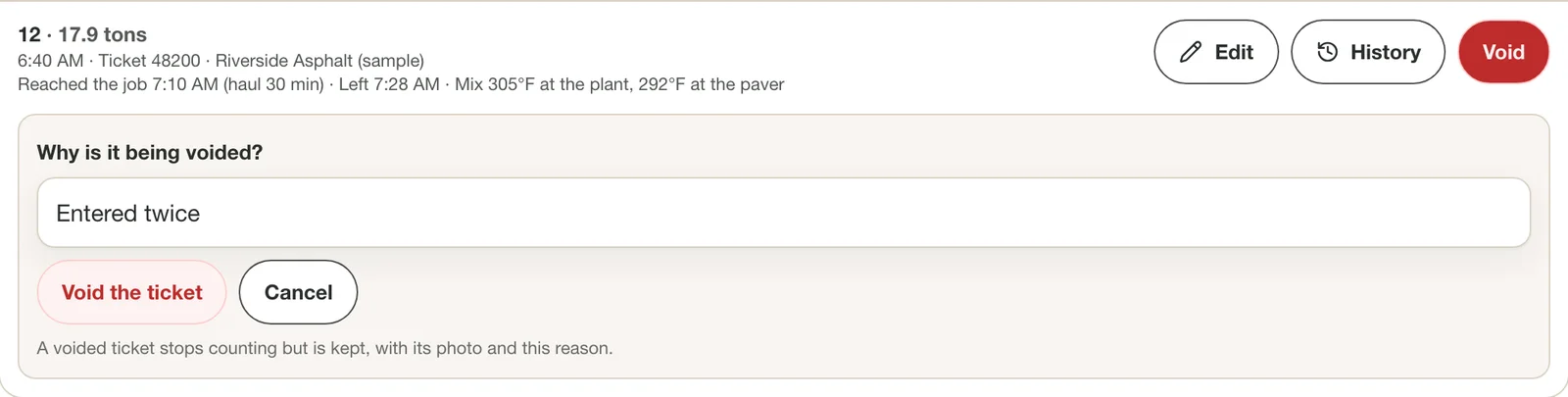
Voiding asks for a reason, and the ticket is kept. 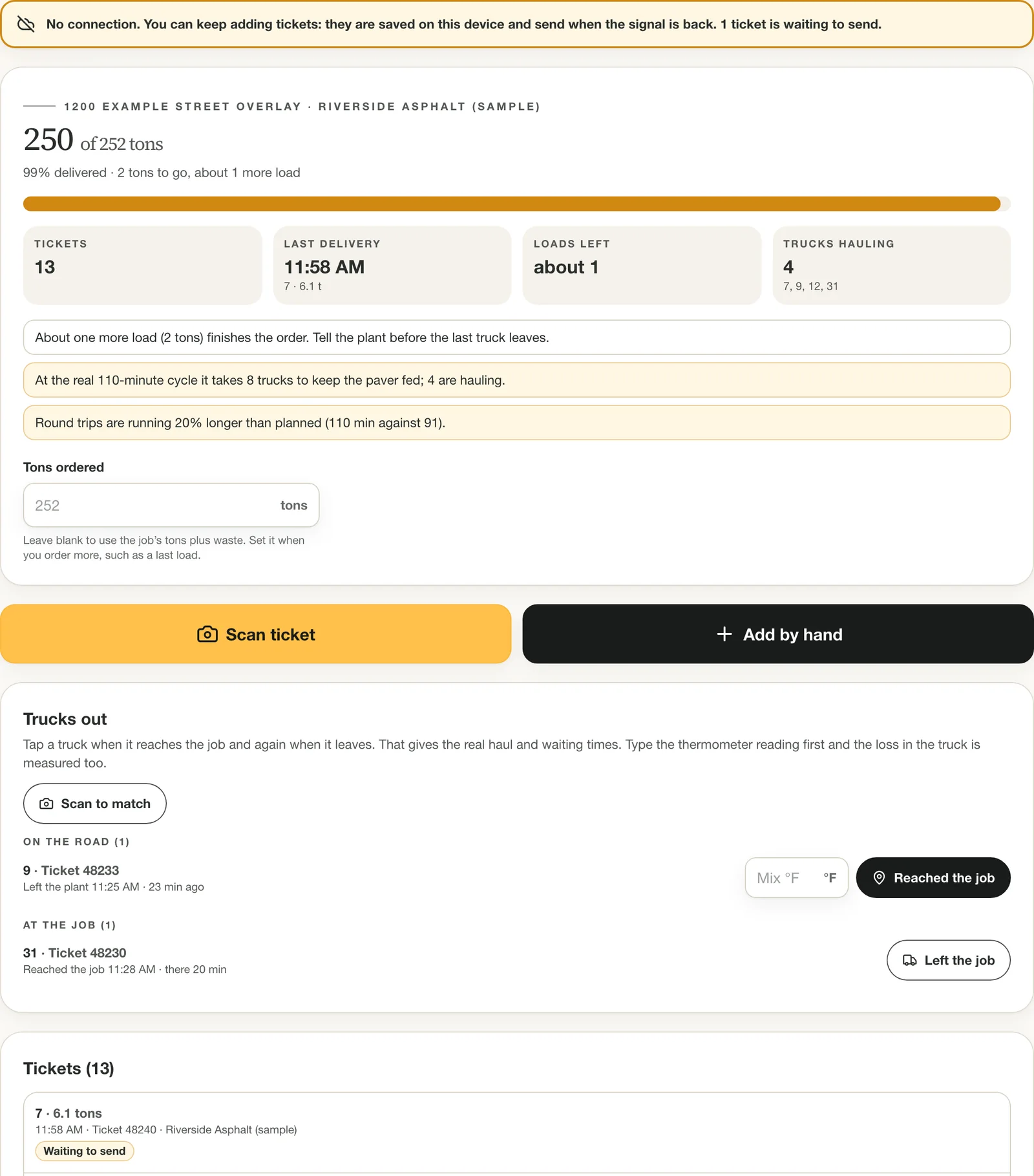
No signal: the ticket is kept on the phone and marked Waiting to send. Tips
- A clear, flat photo in good light reads best. If a scan is off, fix the field by hand.
- With no signal, a ticket is kept on the phone and sent when the connection is back. It shows Waiting to send until it is.
- A job can hold up to 2000 tickets.
Step 21: Watch the tons and the alerts
Do this
- Look at the tons delivered against the order and the loads left.
- Read the alerts under the numbers.
- If you order more, change Tons ordered.
The top card shows the tons delivered against the order, the number of tickets, the last delivery, about how many loads are left and the trucks hauling. The bar turns red if you go over the order. Tons ordered is yours to change when you order more, such as a last-load top-up.
Alerts appear underneath when something needs a call: round trips running slower than they did earlier in the day, not enough trucks hauling to keep the paver fed at the real cycle time, a job running behind its plan, a job over its order, a job nearly done, or the same ticket number entered twice.
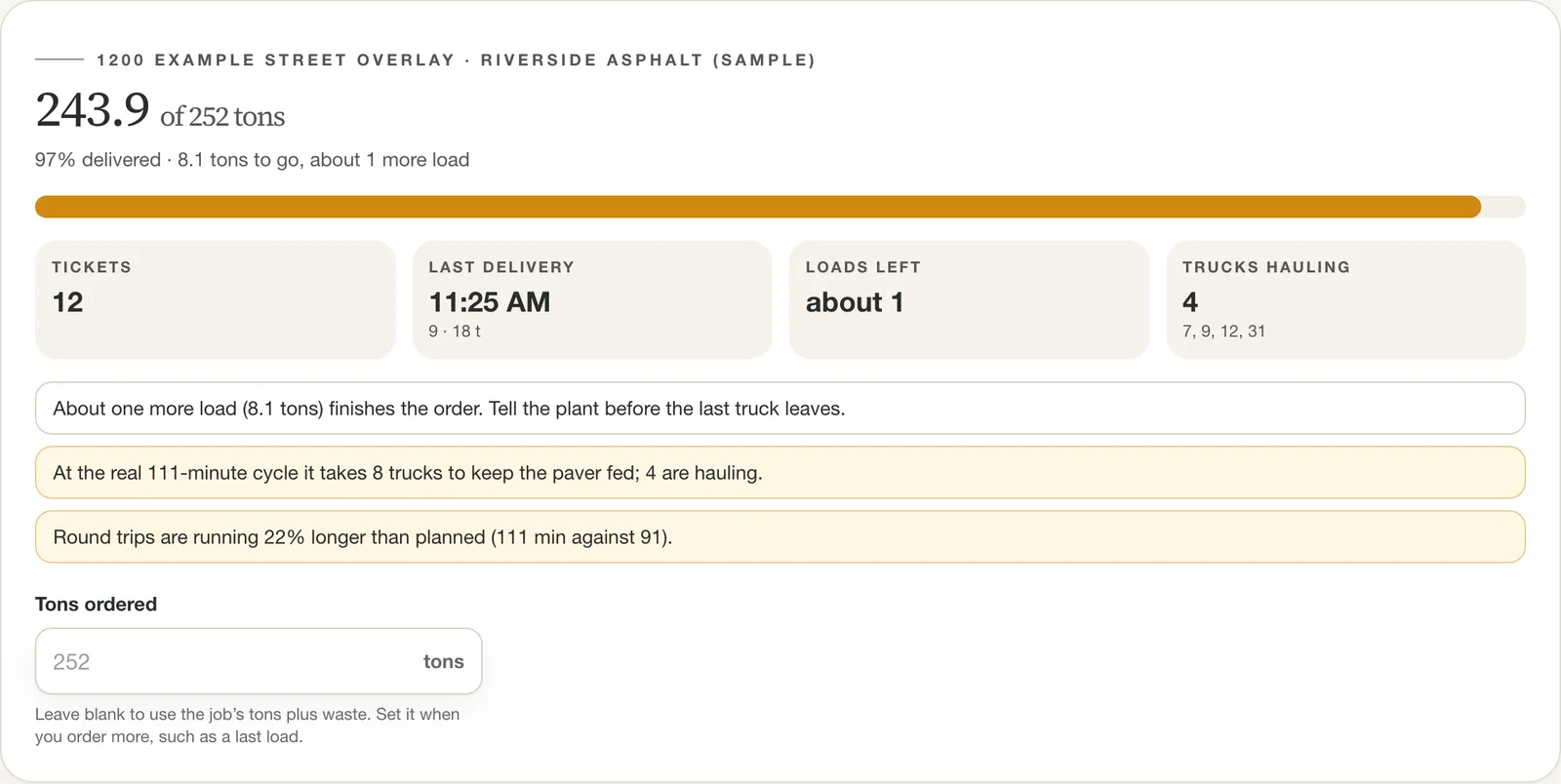
Progress and alerts: here the order is nearly done and round trips are running 22% longer than planned. Tips
- Order the extra before the last load, not after: the card says how many loads remain.
Step 22: Tap each truck when it arrives and when it leaves
Do this
- When a truck reaches the job, tap Reached the job. Type the thermometer reading in Mix °F first if you took one.
- When it leaves, tap Left the job.
- Or press Scan to match, photograph the ticket on arrival, and confirm the truck.
Trucks out lists every load that has left the plant. When a truck reaches the job, tap Reached the job; when it leaves, tap Left the job. The tap takes the phone's clock to the minute. You can also press Scan to match and photograph the ticket on arrival: the number is read, matched to the truck on the road, and you confirm it.
Type the thermometer reading at the paver in the Mix °F box before you tap, and the loss in the truck is measured too. The taps work with no signal: they are kept on the phone and sent when the connection returns, and the same tap sent twice changes nothing.
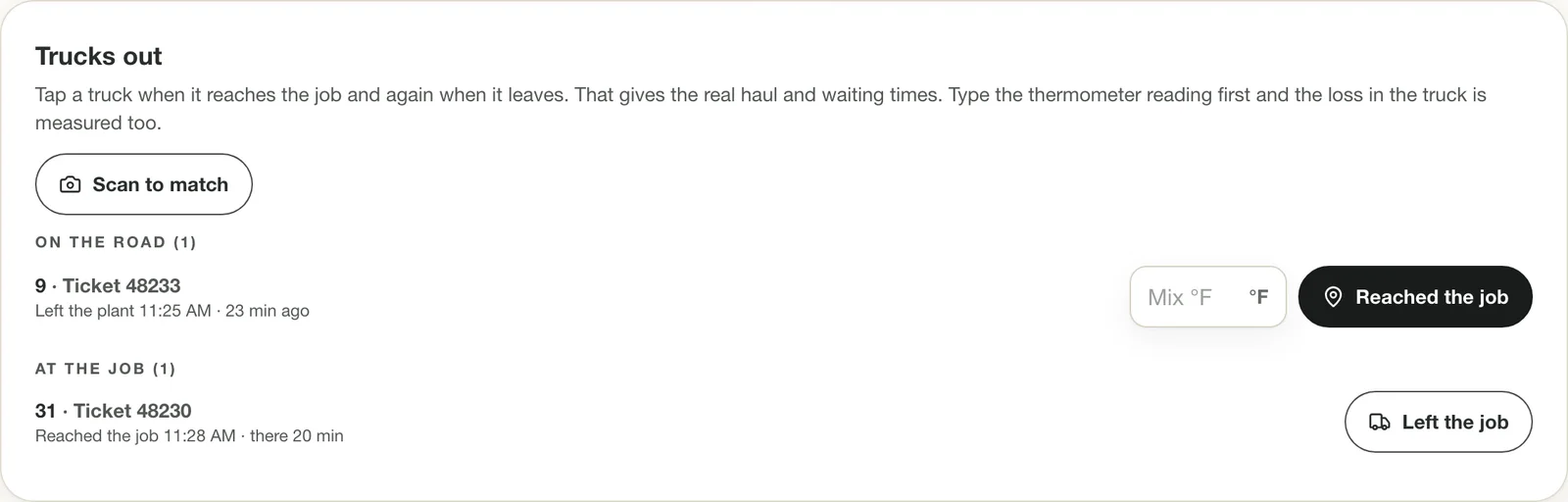
Trucks out: one tap on arrival and one on departure time the haul and the wait. Tips
- A wrong time can be corrected from the ticket's Edit button.
Step 23: Let your tickets tell you how the trucks really run
Do this
- Scroll to Cycle times on Track Deliveries.
- Read the haul, the time at the job, the trip back and the whole cycle.
- Read whether the cycles are steady, and which truck runs off the others.
- If the day was ordinary, press Use the slowdown or Use the cooling loss to feed your next plan.
Cycle times splits a truck's day from your tickets and taps: the haul to the job, the waiting and dumping at the job, the trip back, plant queue and loading, and the whole cycle, each with its typical value, its range and how many readings it rests on. Two tickets from the same truck make one cycle; the taps split it into its parts.
It also says whether the cycles are steady. With at least 5 cycles, it counts how many ran more than 25% off the typical one, names the part of the day that swings most, and names a truck that runs well off the others. A very short gap between two tickets is a double entry and a gap of several hours is a break, so neither counts.
With three or more timed hauls, the card works out how slow your loaded trucks run compared with a car and offers a button, such as Use 54% for my plans, that puts it into your slowdown. With three or more loads that have both temperatures, it offers your measured cooling loss in place of the planner's rough model. Both change only your plans, and only when you press the button.
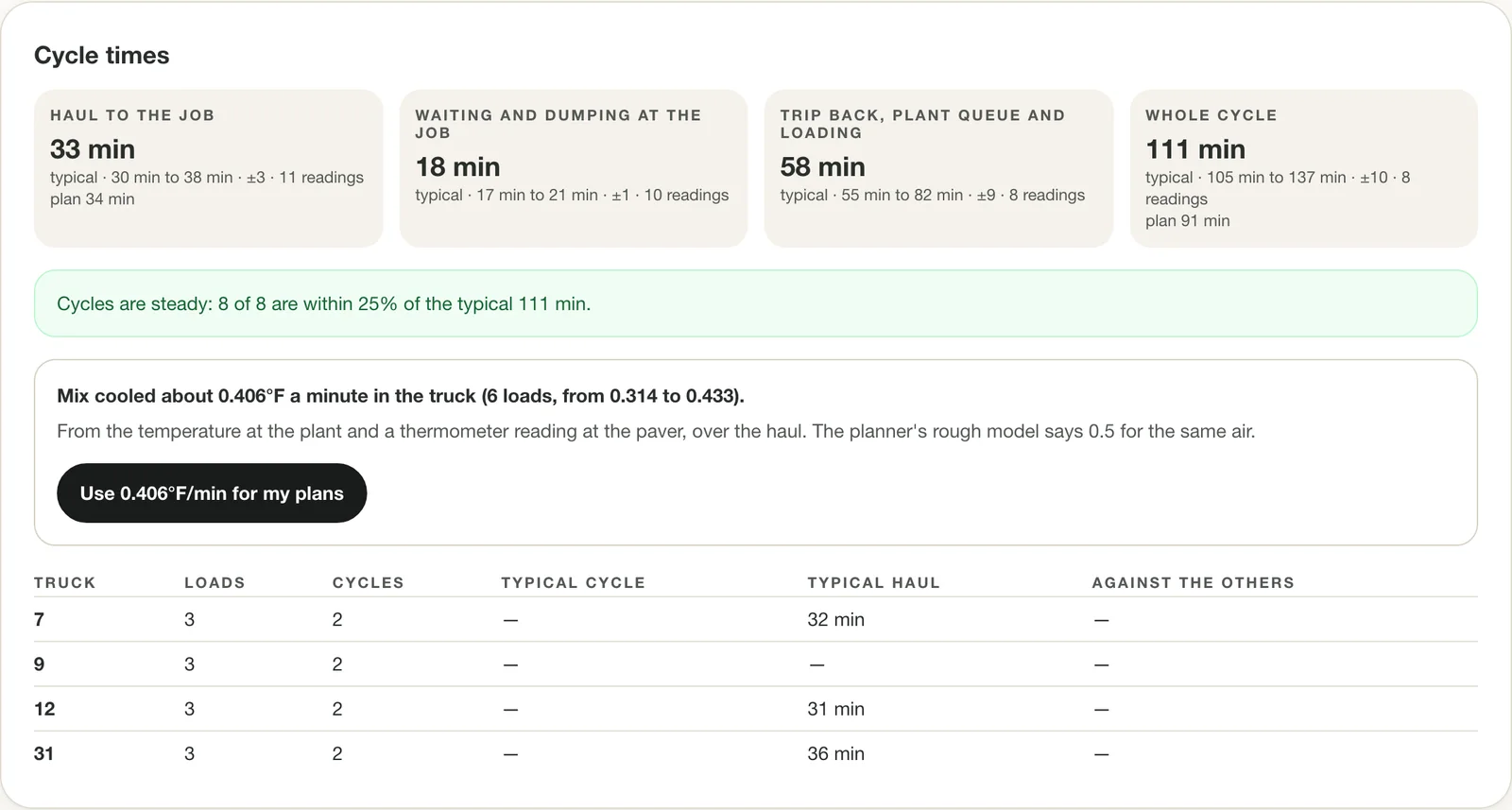
Real cycle times from the tickets, how steady they are, and a measured cooling loss. Tips
- One bad day is not a trend. A line at the plant or a rain delay makes the trucks look slower than they are; use the buttons when the day was ordinary.
- The haul alone is a better figure for the slowdown than the whole cycle, which also counts the plant queue.
Track the day: common questions
How do you calculate truck cycle time for asphalt hauling?
Add four parts: the loaded haul to the job, the time waiting and dumping there, the empty trip back, and the queue and loading at the plant. The Haul Planner measures them from your own records: the weigh ticket time is when the truck left the plant, a tap when it reaches the job and another when it leaves give the haul and the time at the job, and the next ticket from the same truck closes the cycle. The planner shows the typical value of each with its range, so you can compare it with the cycle you planned.
What information is on an asphalt weigh ticket?
A scale ticket typically shows the plant, the ticket number, the date and time, the truck, the material and the weights, with the net weight being what the job is billed on. The Haul Planner takes the plant, ticket number, net weight, material, truck and the time the load left the plant, in tons, pounds, tonnes or kilograms, and stores the weight in short tons while keeping the figure as printed so you can re-check it against the paper.
Can I scan an asphalt weigh ticket with my phone?
Yes. Scan the ticket with the phone's camera, check the numbers it read, and save. Nothing is saved until you confirm. The photo is kept with the ticket in storage only your account can read. A ticket entered with no signal is kept on the phone and sent when the connection returns.
What if a weigh ticket is entered twice or wrongly?
A second ticket with the same plant, number and day is stopped unless you say it is a different ticket. A wrong ticket is voided with a reason and stays on file with its photo; tickets are never deleted, and every change leaves a record.
How do I know if my truck cycles vary too much?
The planner calls the cycles varying when at least a quarter of them run more than 25% away from the typical cycle, once five or more have been measured. It also compares each truck with the others and warns when trucks are short for the paver or round trips are running longer than planned.
Ready to try it on your next job?
Included free with a Pro, Featured or Sponsored listing, or $14.99/month ($149/year) on its own.
Open the Haul Planner