
Step 12: Plan the trucks for a paving rate
Do this
- Open Hauling Plan and choose Paving.
- Enter the Paving rate to hold, the Working hours, First load on site and Trucks you have.
- Under Drive and loading from, pick the plant you are buying from.
- Read the banner and the table of trucks against production.
- Press Copy schedule to send the loading and arrival times to your haulers.
The Production plan answers the question a paving foreman asks: how many trucks does it take to hold the rate? Choose Paving, enter the Paving rate to hold in tons an hour, the Working hours and First load on site, and the plan says how many trucks it takes, when the plant should start loading, when the last load is placed and what the trucking costs.
Drive and loading from picks the plant whose measured drive the plan uses, and Type my own lets you enter a round trip by hand. The plan works out how many tons an hour one truck delivers on its cycle (loading, drive out, unloading, drive back) and checks that against what the paver can place. It tells you when the rate you asked for is out of the paver's reach, and Trucks against production shows the same day with fewer and more trucks. Copy schedule copies the loading and arrival schedule for your haulers.
Prefer to start from the trucks you have? Press Or see what your trucks can deliver and it reports the rate they can hold instead.
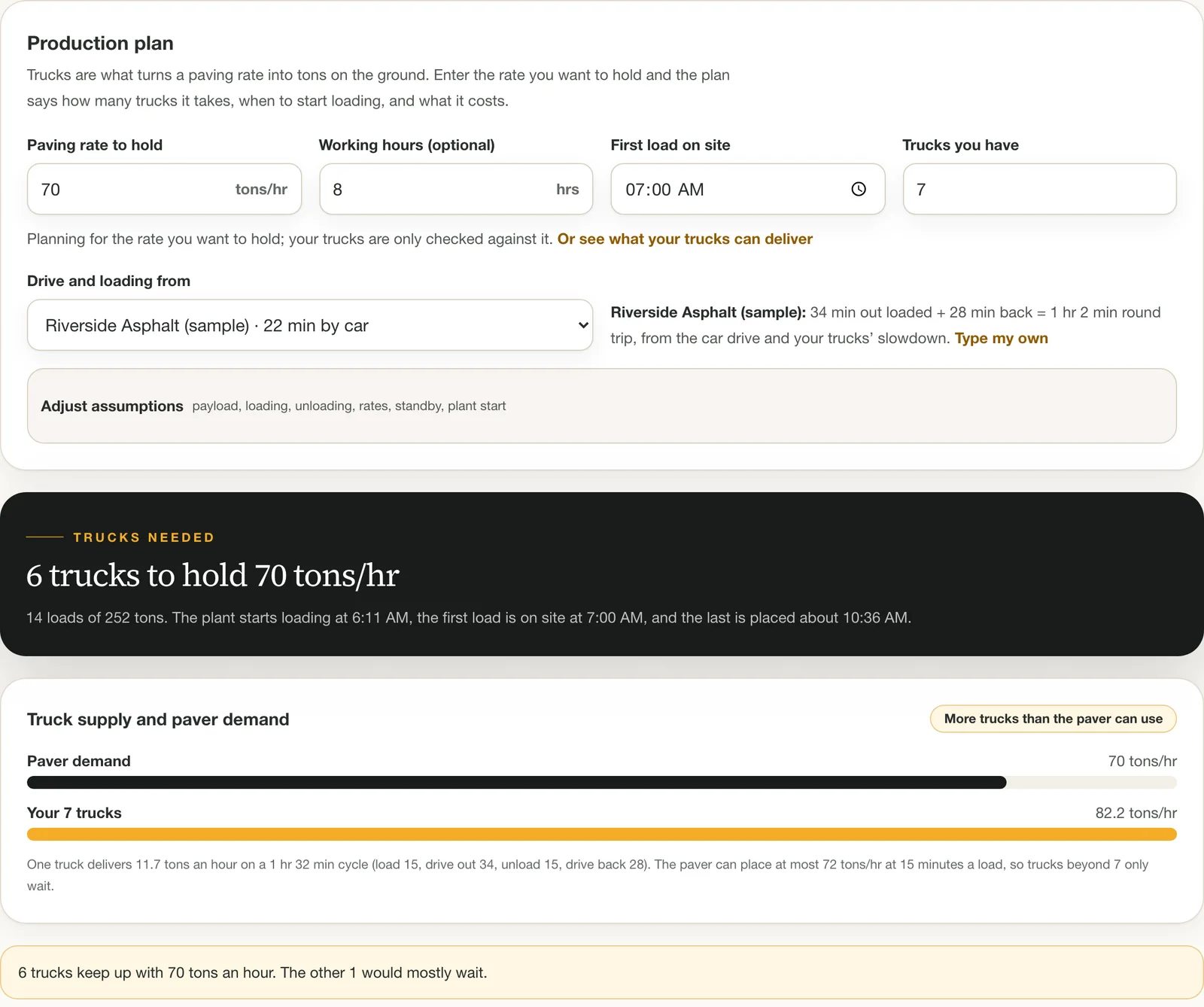
The production plan: trucks needed for the rate, the day's times and cost, and what fewer or more trucks would do. 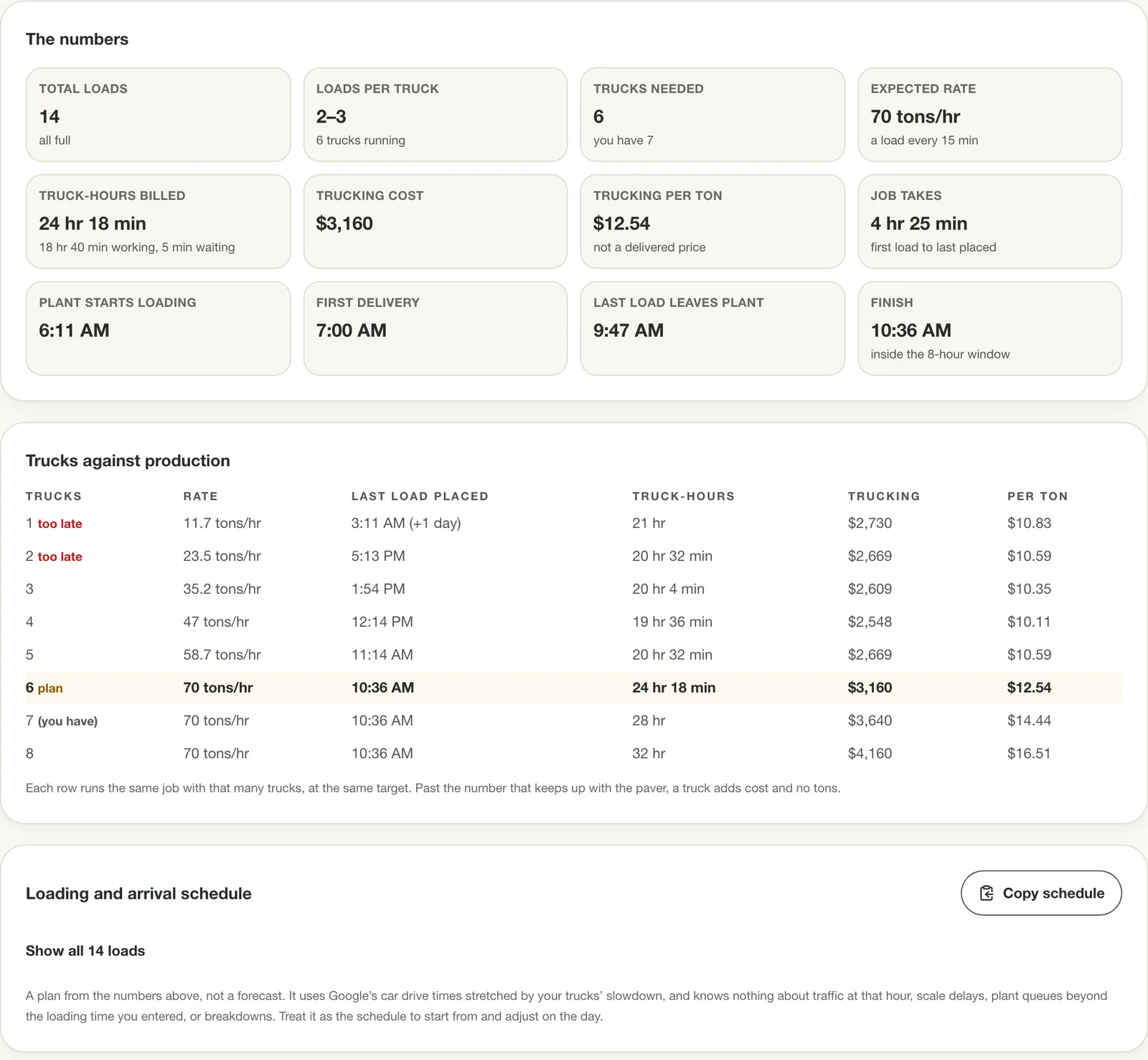
The numbers behind the banner, and the same day with other truck counts. Tips
- Adjust assumptions holds the payload, loading and unloading times, rates and an optional standby rate for a truck that waits for its next load.
- It is a plan from the numbers you entered, not a forecast: it knows nothing about traffic, scale delays or breakdowns.
Step 13: Say how slow your trucks are
Do this
- On Hauling Plan, open Slowdown, crew pay and fees.
- In How slow are your trucks?, tap a percentage or type your own.
- If the empty trip back is quicker, tick The empty trip back is quicker and set it.
Google times the drive for a passenger car. A loaded dump truck is slower, so open Slowdown, crew pay and fees and set How slow are your trucks? Choose Slower speed if you think of it as "my trucks run 35% slower", or Longer drive if you think of it as "add 35% to the drive". Both describe the same thing, and the card spells it out: 35% slower speed is a drive that takes 54% longer.
Tap 15, 25, 35, 50 percent, or type your own. A badge shows what it means for a 30 minute drive. If the empty trip back is quicker than the loaded trip out, tick The empty trip back is quicker and set it separately.
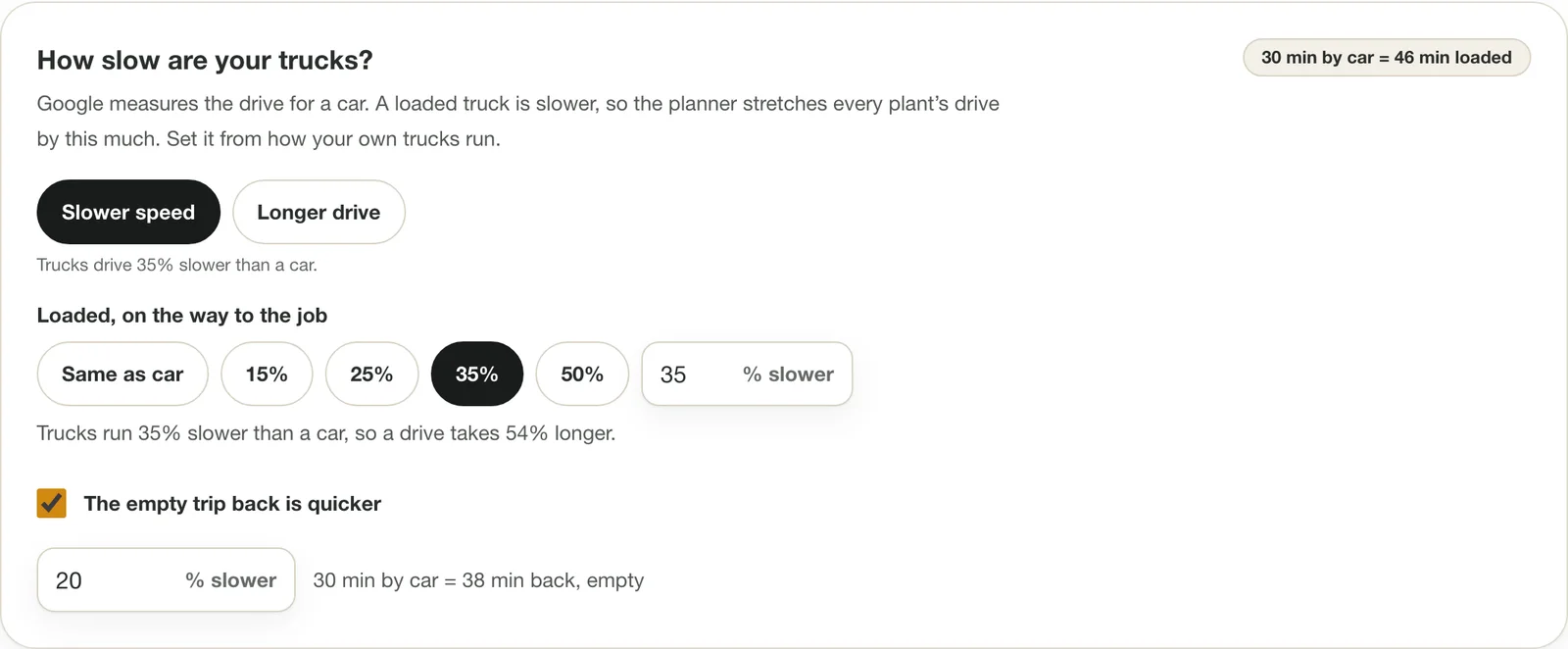
How slow are your trucks? It moves every drive time in the plan and in the plant list. Tips
- Every plant card shows both times: the loaded truck and the car. The loaded truck's time is the one that bills.
- A starting number is not a finding. Grades, stops and road type all change it, and the planner starts at 35%. Cycle times, under Track Deliveries, show how your own tickets can tell you the real figure.
Step 14: Set your trucking, crew and fees once
Do this
- Press Use my fleet if you have saved your trucks. Otherwise fill in the trucks, rate, tons and hauler's minimum yourself.
- Enter the Crew cost while the paver waits and tap the Day rules that match your overtime.
- Set the waste, short-load fee and any tolls.
- Enter your own limits for the mix temperature and the time a load may sit in the truck, or leave them blank.
Below the slowdown, the same card holds the numbers behind every price. If you have saved your trucks, Use my fleet sets the most trucks you'll run, the tons per truck and the truck rate from them; a mixed fleet is averaged, and the card says so. Otherwise enter them yourself: the truck rate per hour, tons per truck, the hauler's minimum hours per truck, how long loading at the plant takes, and how long the paver takes a load in. Set a default dump fee for old asphalt.
Then price your crew's wait. Crew cost while the paver waits is what your crew costs you per hour while they stand for trucks. Regular hours a day, Overtime pays, Double time after and Double time pays say when that hour gets more expensive. The Day rules buttons set the two common ones: overtime after 8 and double time after 12, or after 10 and 14. Other crew hours that day is setup, travel and cleanup that count toward the day too.
Last, Order extra for waste, Short load is under with a short-load fee, Tolls or per-trip charge and Other trucking charges, and your own limits for the mix: Lowest air temperature you pave in, Longest a load may sit in the truck, Typical wait at the paver, Mix temperature leaving the plant and Lowest mix temperature at the paver. Leave a limit blank and nothing is checked.
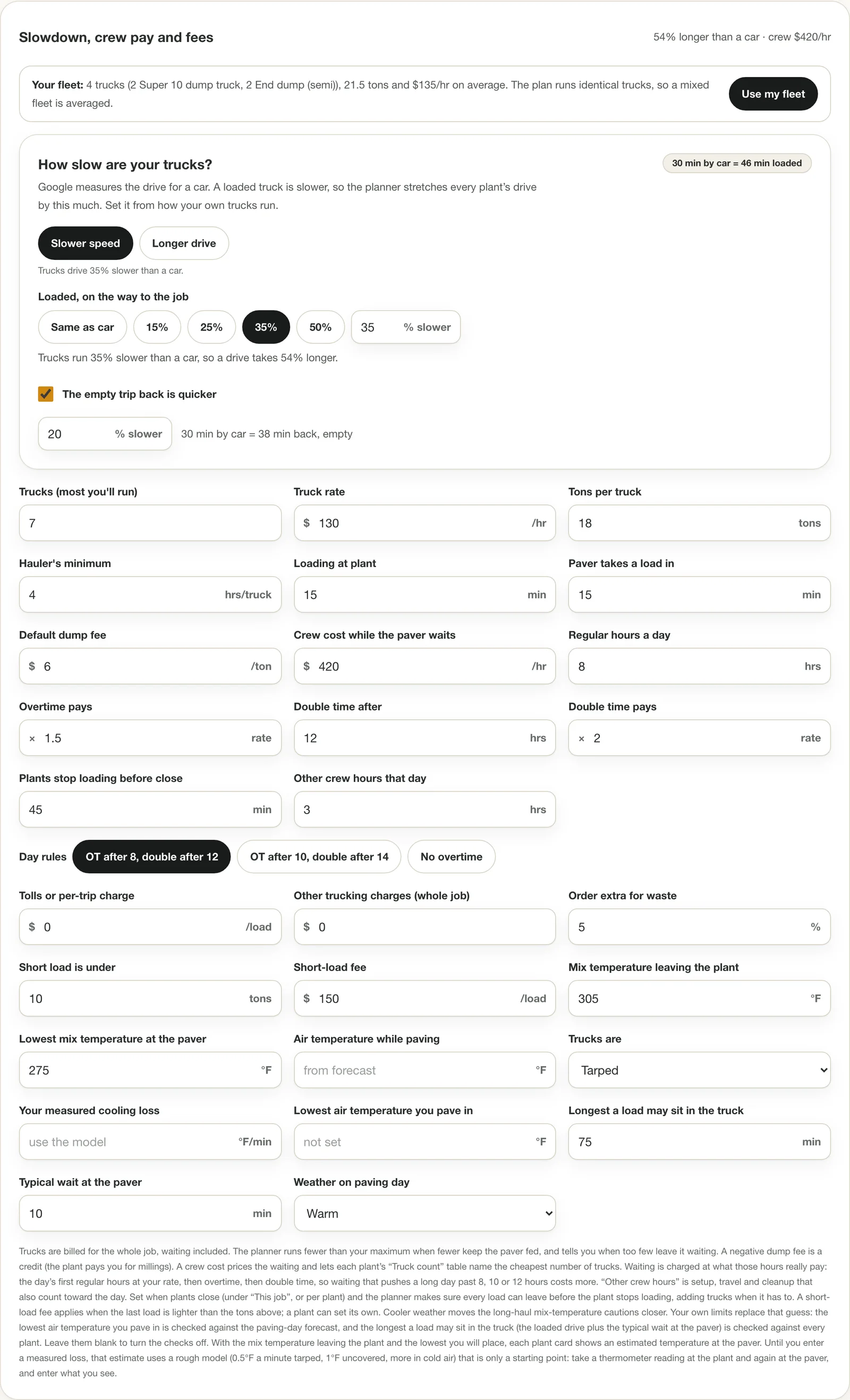
Slowdown, crew pay and fees. The defaults are a starting point: replace them with what you actually pay. 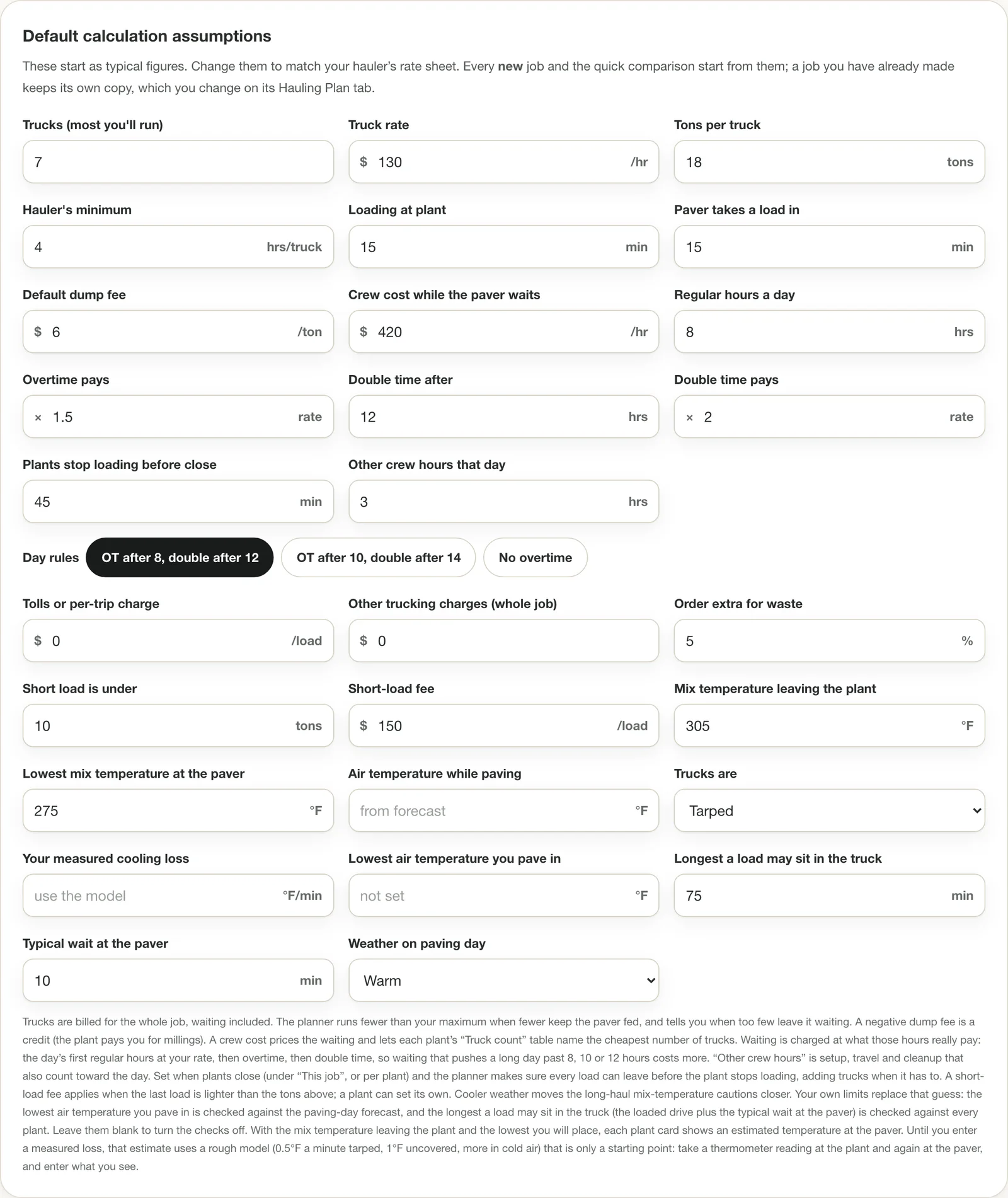
Settings holds the defaults every new job starts from. Tips
- Start numbers are 4 trucks, $120 an hour and 18 tons a truck (a Super 10). They are placeholders, not recommendations.
- If your hauler bills a minimum number of hours per truck, enter it. On a short haul the minimum, not the drive, is often what you pay. Trucks are billed at one flat hourly rate; the planner does not add hauler overtime.
- Leave the crew cost at 0 and waiting looks free, so fewer trucks always look cheaper. Enter it to see the real trade.
- Changes here belong to the open job. The same numbers under Settings are the defaults a new job starts from.
Step 15: Check the weather and the mix temperature
Do this
- Give the job a Planned paving date on Compare Plants, and run Find plants and compare once so the address is located.
- On Hauling Plan, press Get the forecast on Paving day weather.
- Read the hourly row and any notice about your minimum temperature.
- Tap the Use button if you agree with the weather band it suggests.
Give the job a Planned paving date and a located address (a search does that), then press Get the forecast on Paving day weather. It asks the National Weather Service for the hourly forecast at the job on that day and shows the temperature while your crew works, with the wind and the chance of rain. The Weather Service covers the United States, about a week ahead; outside that the card says so and you set the weather by hand.
The coldest hour points to cold, cool or warm weather, and one tap applies it (with the air temperature) to the plan. Nothing changes until you tap. If you have entered the lowest air temperature you pave in, the card tells you when the forecast falls under it, and when it reaches it, so a later start can fit.
Mix cooling is only a rough estimate. The planner starts from a simple model (about half a degree a minute in a tarped truck, a degree uncovered, more in cold air) that is not a measurement. Enter the temperature leaving the plant and the lowest you will place, and each plant card shows an estimated temperature at the paver and warns if it falls short. The cycle times card can replace the model with your own measured loss.
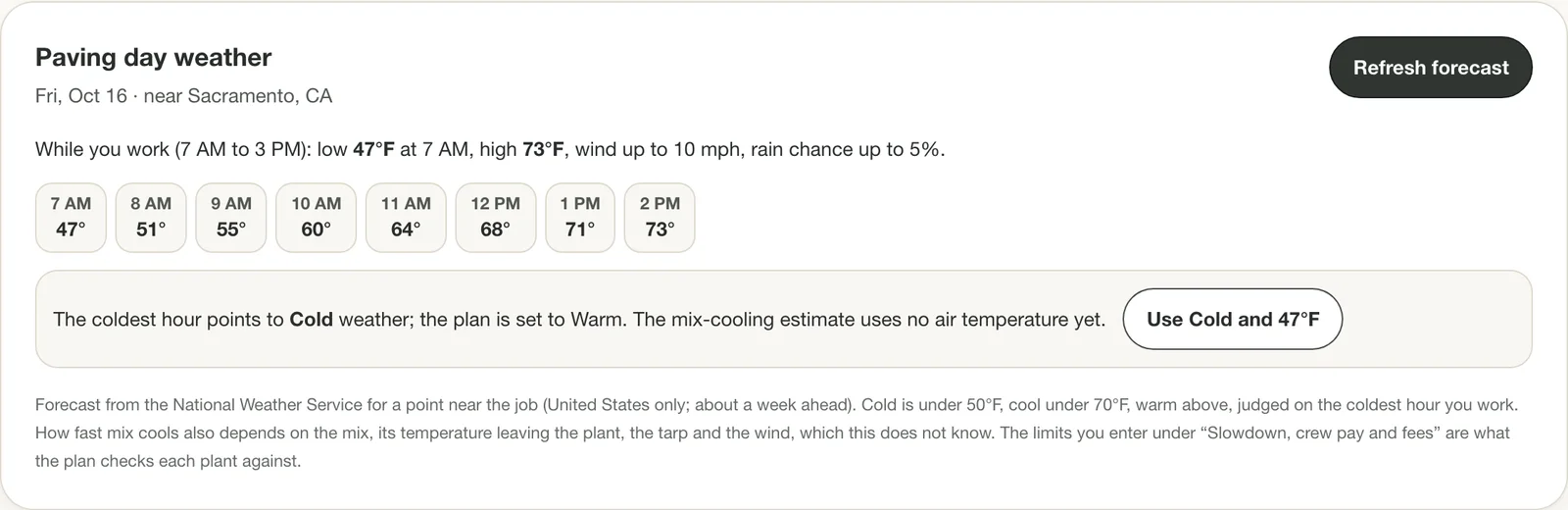
The forecast for the paving day, and what the coldest hour points to. Tips
- The forecast is fetched only when you press the button, and a saved one is marked out of date after a few hours or when the date changes.
- Your own limits are what the planner checks. It does not guess at a specification.
Step 16: Plan demo day: keep the grinder moving
Do this
- On Hauling Plan, press Milling (demo day).
- Choose Wirtgen 4 ft, Wirtgen 6 ft or My own grinder, and enter the Cut depth and Advance speed.
- Enter the Area to mill, or the tons to haul off.
- Read Where to take the millings and choose the cheapest place.
- Add a Spare trucks if one breakdown must not stop the cut.
Choose Milling (demo day) and the plan is built around the grinder, which stops the moment no truck is under its conveyor. Pick Wirtgen 4 ft, Wirtgen 6 ft or My own grinder (its width, depth and how fast it advances), enter the area or the tons to haul off, and the plan says how many trucks keep it moving, how long the cut takes and what the trucking costs.
Where to take the millings compares every plant you have measured plus any other dump you add. Millings usually go to the plant you buy the new asphalt from, often free when you buy there, so that plant is the default; the table prices every other place the same way (trucking plus its fee) so a cheaper dump shows up. A place with no fee entered is listed but not ranked.
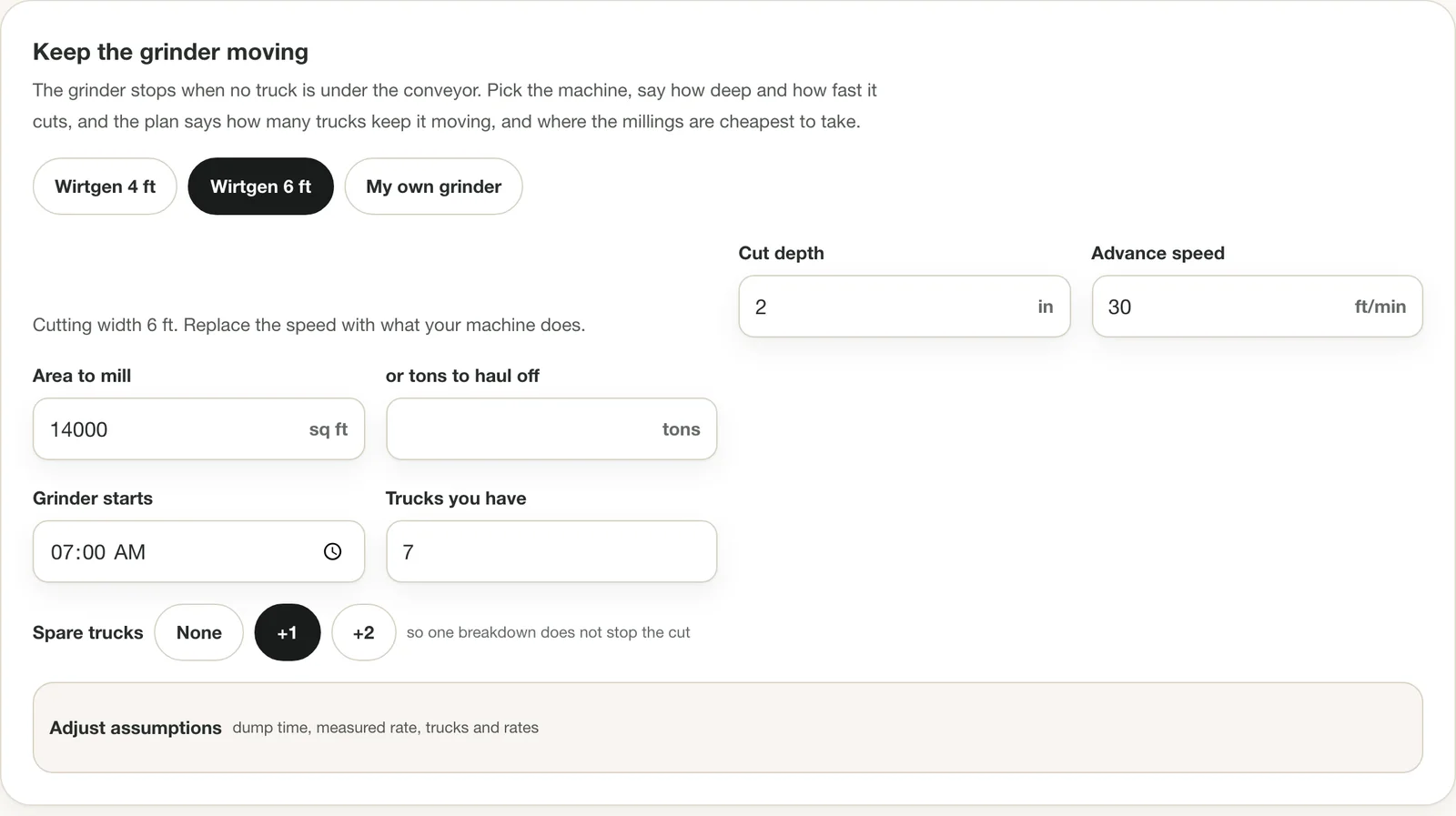
Demo day: trucks to keep the grinder moving, and where the millings are cheapest to take. 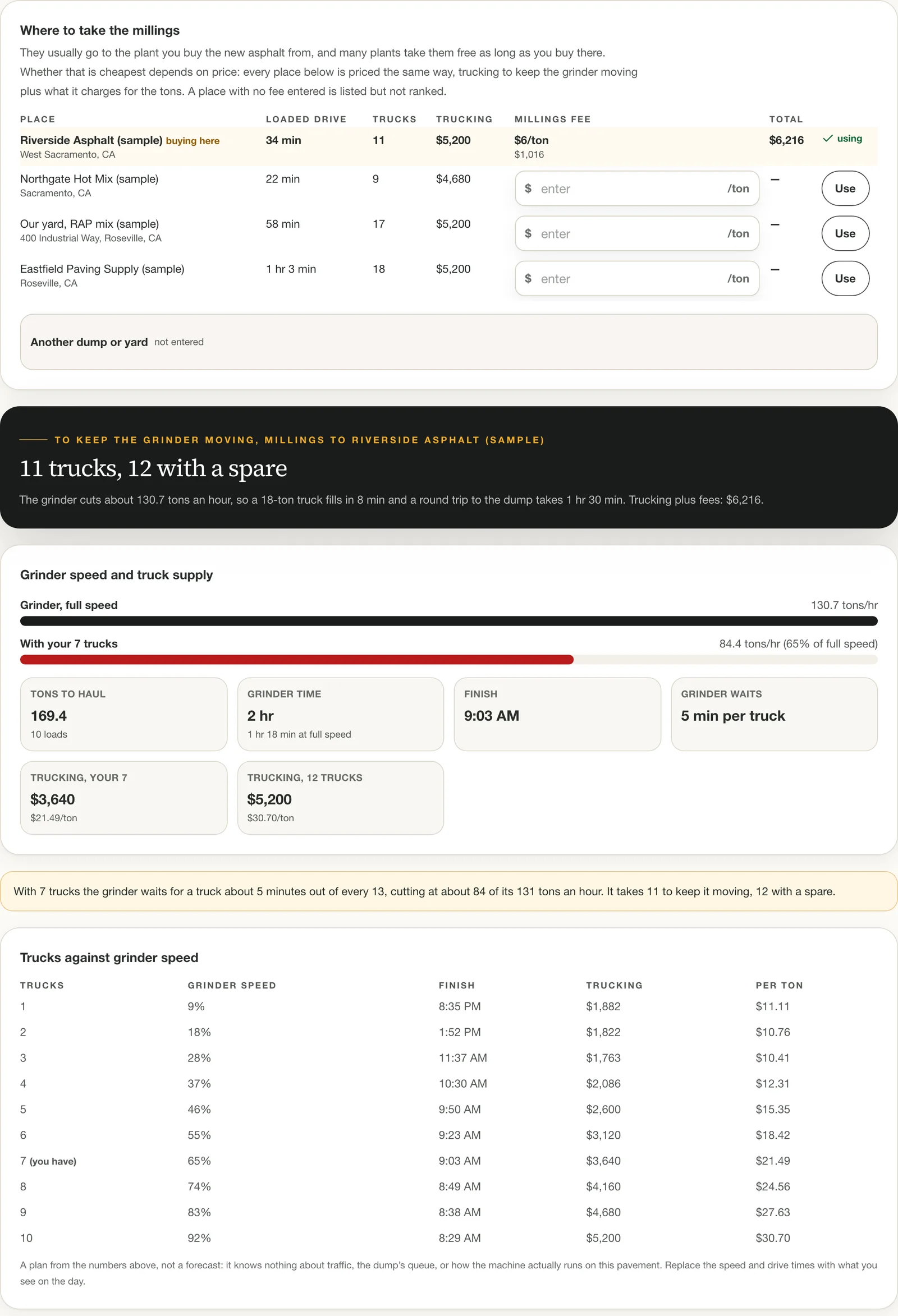
Where the millings are cheapest to take, and how trucks change the finish time. Tips
- Spare trucks adds one or two so a single breakdown does not stop the cut.
- The grinder's speed is a starting point, not a specification. Replace it with what your machine does on this pavement.
Step 17: Mill and pave on the same day
Do this
- On Hauling Plan, press Mill and pave the same day.
- Enter the area to mill, the New asphalt to place and the Paving rate to hold.
- Set Grinder gets ahead of the paver by to the real head start.
- Choose where the millings go, then read The day in three parts.
Choose Mill and pave the same day when one set of trucks does both. A truck can carry millings to the plant and new asphalt back, so most of the day runs round robin, but not all of it: the grinder starts ahead of the paver, so the first loads of millings go out one way, and the paver finishes behind the grinder, so the last loads of asphalt come in one way.
Set Grinder gets ahead of the paver by to however long that head start really is on this job (15, 30, 45 or 60 minutes, or type your own). The plan splits the day into start, round robin and finish, sizes the trucks for each, and compares sharing them with running a separate fleet for each machine.
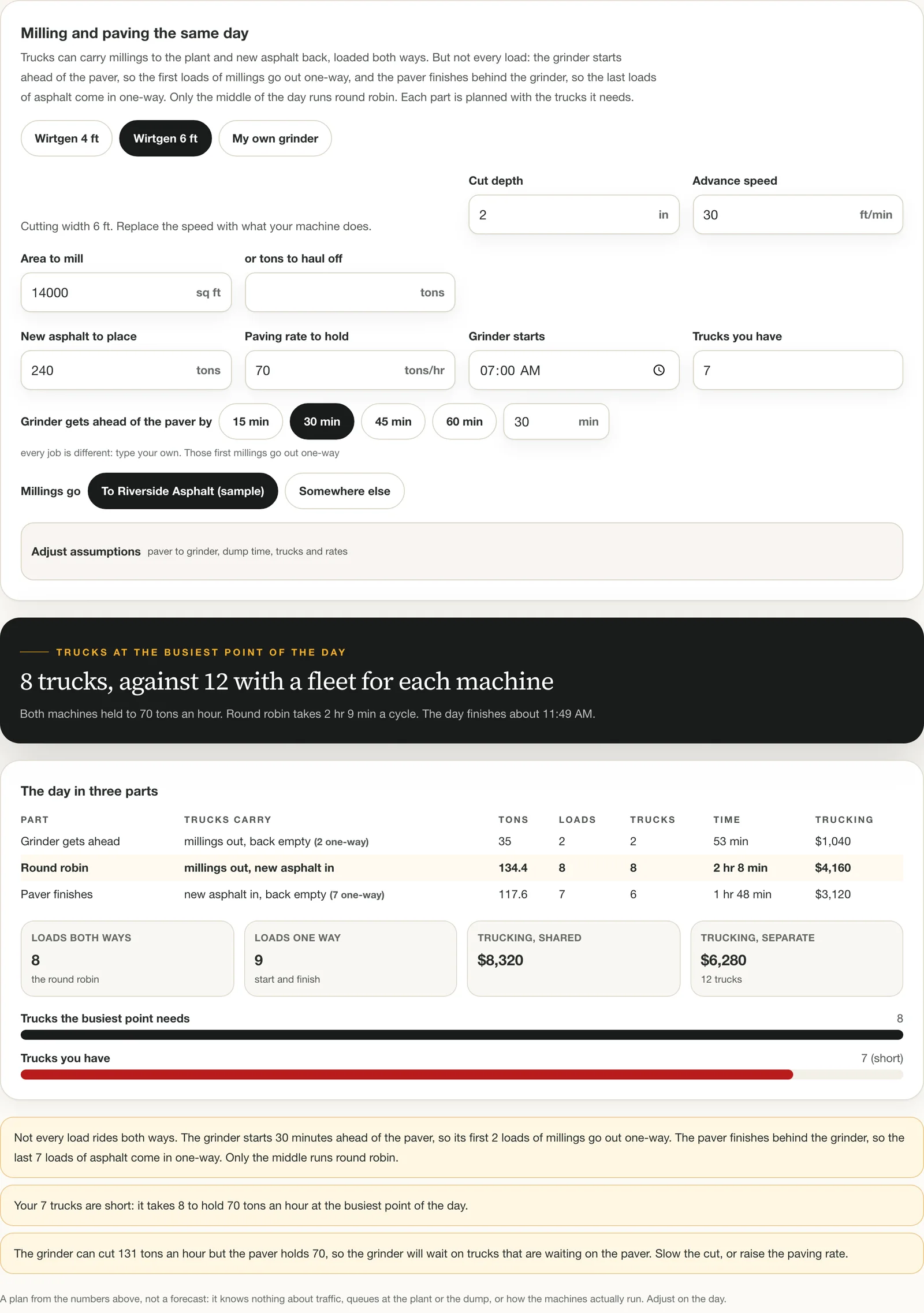
Same-day mill and pave: the head start sets how many loads ride one way, and the middle runs round robin. Tips
- Every job is different: the head start is yours to set.
Plan the hauling: common questions
How many trucks do I need to pave?
Divide the paving rate you want to hold by what one truck delivers an hour. One truck delivers its payload divided by its round-trip time in hours. Example from the sample job: an 18-ton truck on a 1 hour 32 minute round trip (15 minutes loading, 34 out, 15 unloading, 28 back) delivers about 11.7 tons an hour, so 70 tons an hour takes 70 ÷ 11.7 = 6 trucks. Trucks beyond what the paver can place only wait, so the planner also shows the paver's own limit. Confirm the real numbers with your hauler; the haul times here are estimates from road drive times and your slowdown.
What is the minimum temperature for paving asphalt?
It is set by the specification and varies with the mix, the lift thickness and the agency, so check your project's spec. Minimums are commonly in the range of roughly 40 to 50°F for the air or surface, and higher for thin lifts. The Haul Planner does not impose a limit: you enter your own lowest air temperature and the lowest mix temperature you will place, and it flags a plant whose mix is estimated to arrive at the paver below it, using the National Weather Service forecast for the paving day.
How do I plan an asphalt milling day?
Start with the grinder's speed, the cut depth and the area, which give the tons an hour it produces and how many trucks it takes to keep it moving. In the sample job the grinder cuts about 130.7 tons an hour; seven trucks hold it to about 84 tons an hour, and it takes 11 trucks, or 12 with a spare, to keep it moving. The planner also prices each place the millings could go (trucking plus the place's fee for the tons) and covers a same-day mill and pave.
What do asphalt trucks cost per hour?
It varies with the region, the hauler and the truck type, and haulers often bill a minimum number of hours, so use your own quote. The planner multiplies trucks × hours billed × your hourly rate, using the longer of the job's length and your hauler's minimum hours. A new account starts with a placeholder of $120 an hour that you replace with your rate.
When should I order the last load of asphalt?
Work back from when the plant stops loading: take off the loading time, the time for the truck to get back, and the notice the plant wants. In the sample job the plant stops loading at 2:45 PM, so the order is due by 2:02 PM. The planner counts this down on the job, measures what is left to pave, and gives the tons to order with a cushion and a call button for the plant.
Ready to try it on your next job?
Included free with a Pro, Featured or Sponsored listing, or $14.99/month ($149/year) on its own.
Open the Haul Planner