

Why price per ton is not enough
The nearest plant is not always the cheapest, and the cheapest mix is not always the cheapest job. A plant 25 minutes farther away can win if its mix is a few dollars a ton lower, and lose again once the trucks are billed by the hour for the longer haul. Add a dump fee for the old asphalt that comes out, which differs from plant to plant, and the answer is rarely obvious from a price sheet.
Working it out by hand means a drive time for every plant, a cycle time for the trucks, a hauler's minimum, and a spreadsheet you rebuild for each job. The Haul Planner does that for every plant around a job site in one pass, with your own prices and rates, and keeps them saved for the next job.
It is built for asphalt contractors who buy hot mix and haul it themselves or hire it hauled. It is not a price list: it never tells you what a plant will charge. The prices are the ones you have been quoted or have paid.
Before you start
- An account with the tool. The Haul Planner is a free extra with a Pro, Featured or Sponsored listing, or you can subscribe to it on its own. Sign in and it opens from your dashboard.
- The job-site address. The street address, not just the city: drive times are measured from it. A city or ZIP code works but measures from its center and says so.
- The tons, or the area and depth. If you only know square feet and thickness, the tool converts them.
- Your price per ton at the plants you buy from, for the mix you are paving, and any dump fee the plant charges for old asphalt.
- Your trucking numbers. Trucks you run, the hourly rate, tons per truck and your hauler's minimum hours. You enter these once and they are saved.
The steps, one at a time
Step 1: Enter the job
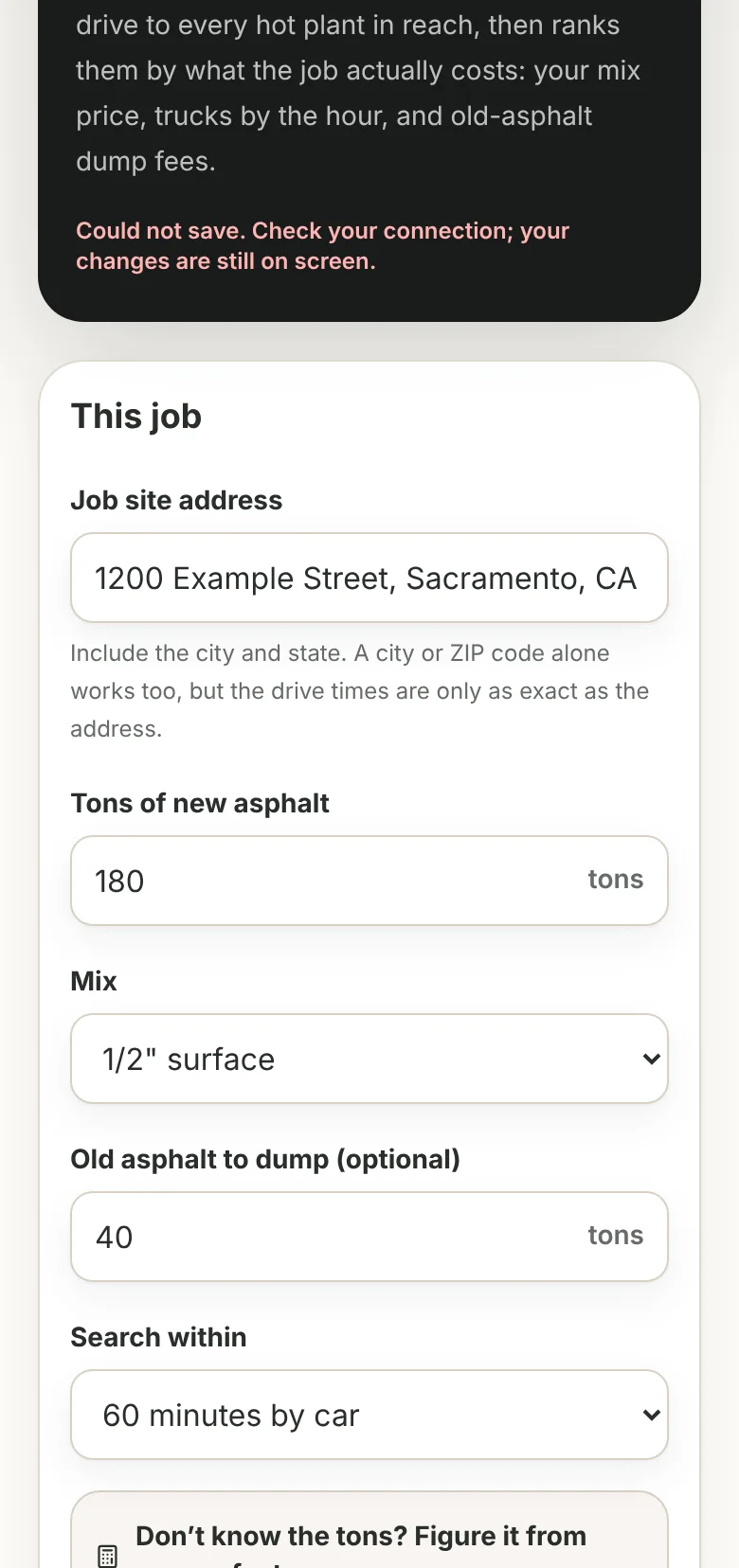
Open the Haul Planner and fill in This job: the job-site address, the tons of new asphalt, the mix, and how many tons of old asphalt you will be dumping, if any. Choose how far to look with Search within, from 20 minutes up to what your plan allows.
Don't know the tons? Open Don't know the tons? Figure it from square feet, enter the area and the compacted depth, and press Use this tonnage. It figures tons at 145 lb per cubic foot.
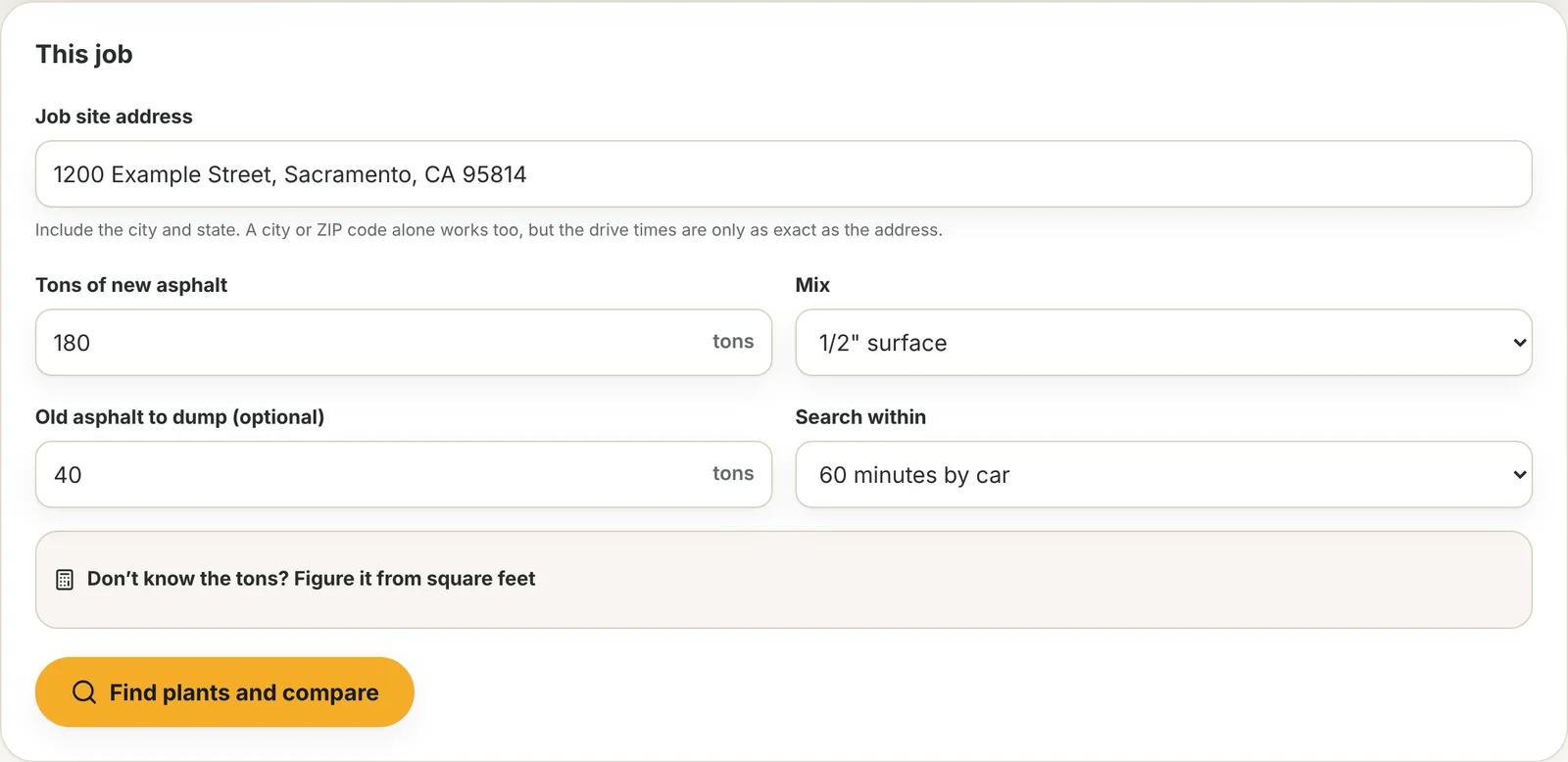
The job card. Everything here is for this job only; your rates and prices stay saved between jobs. Tips
- Use the exact street address. A city or ZIP code is measured from its center, so the drive times are rougher.
- Pick the mix you are actually paving. Your price per ton is saved per mix, so you can run the same plants for a base course and a surface course.
Step 2: Set your trucking and fees once
Open Trucking, fees and mixes. Enter the most trucks you'll run, your truck rate per hour, tons per truck, the hauler's minimum hours per truck, how long loading at the plant takes, how long the paver takes a load in, and how much slower a loaded truck is than a car.
These are saved to your account, so the next job starts from them. The same card holds your default dump fee and the list of mixes you buy; add a mix by name and it appears in the job card's mix menu.
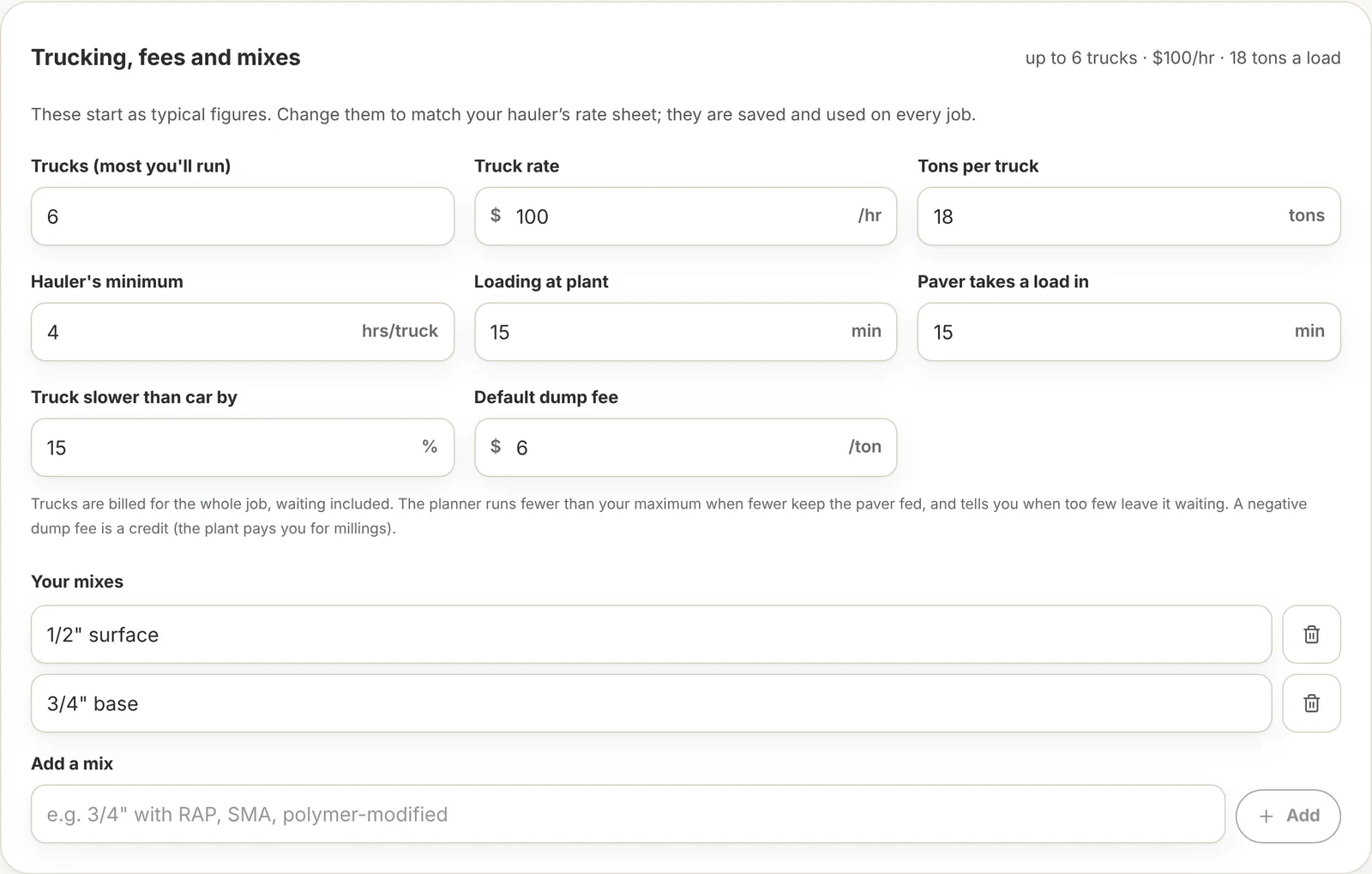
Trucking, fees and mixes. The defaults are a starting point: replace them with what you actually pay. Tips
- Start numbers are 4 trucks, $100 an hour and 18 tons a truck. They are placeholders, not recommendations.
- If your hauler bills a minimum number of hours per truck, enter it. On a short haul the minimum, not the drive, is often what you pay.
Step 3: Find the plants
Press Find plants and compare. The planner measures the road drive time, with typical traffic, from the job to every hot mix plant in reach, plus any plants you have added yourself, and lists them nearest first.
This is the one step that costs us a lookup, so it counts against your weekly allowance. Reopening a job you have already searched is free, and so is a plant you have already measured from that address.
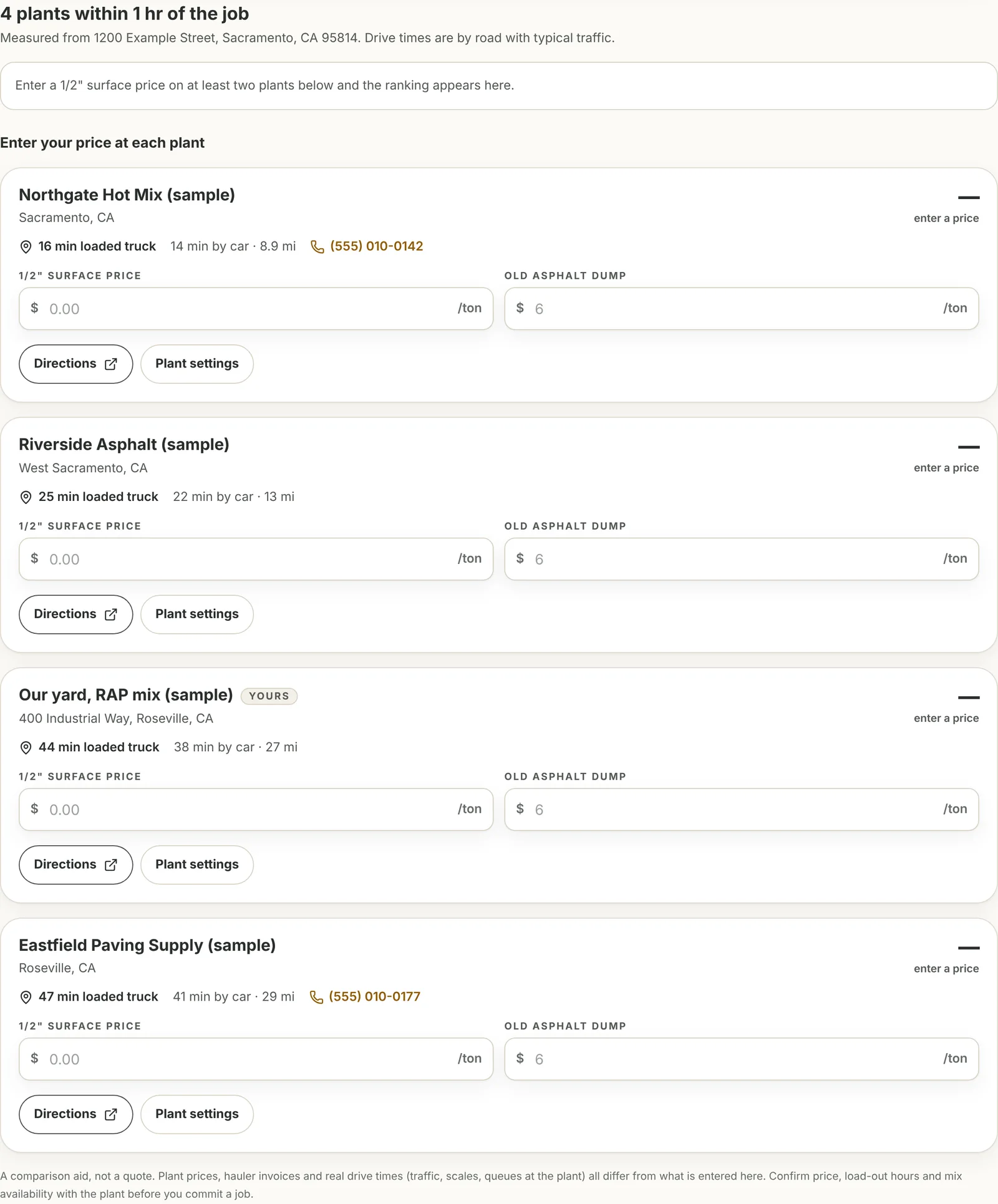
Plants found, nearest first. None is ranked yet because no prices have been entered. Tips
- Each card shows the drive time for a loaded truck as well as by car, because that is the time that bills.
- Tap Directions on any card to open the route in Google Maps, or the phone number to call the plant.
Step 4: Type your price at each plant
On each plant's card, enter your price per ton for the mix, and an old asphalt dump fee if that plant charges one. If you leave the dump fee blank it uses your default. A plant with no price stays at the bottom as Not ranked yet.
The ranking updates as you type. Cards hold their place while you are typing in them, then re-sort when you move on, so the list does not jump under your thumb.
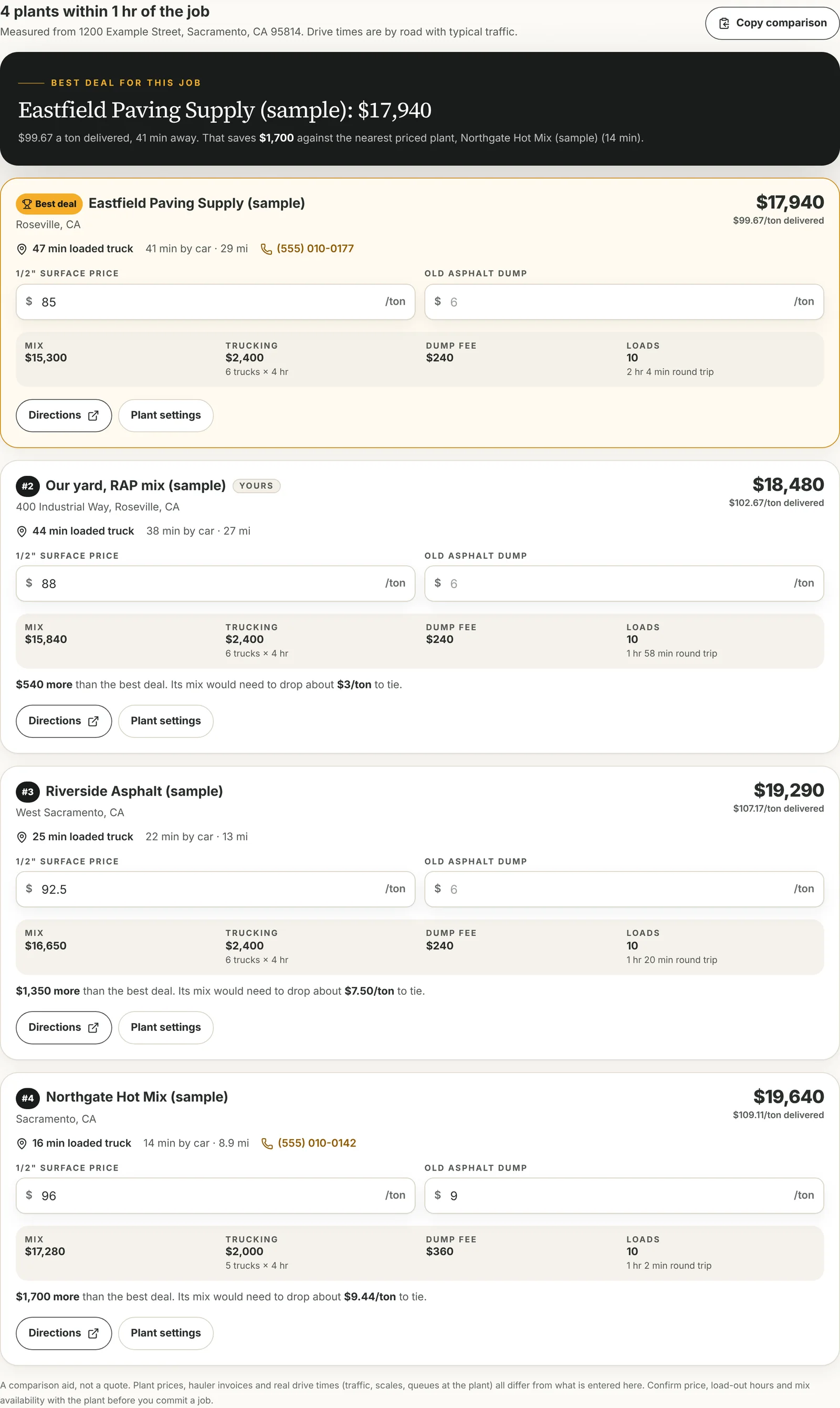
Prices in, plants ranked. The cheapest delivered cost for the job is first. Tips
- Price at least two plants. With only one priced, the banner says so, because there is nothing for it to beat yet.
- A negative dump fee is a credit, for a plant that pays for your millings.
Step 5: Read the best deal
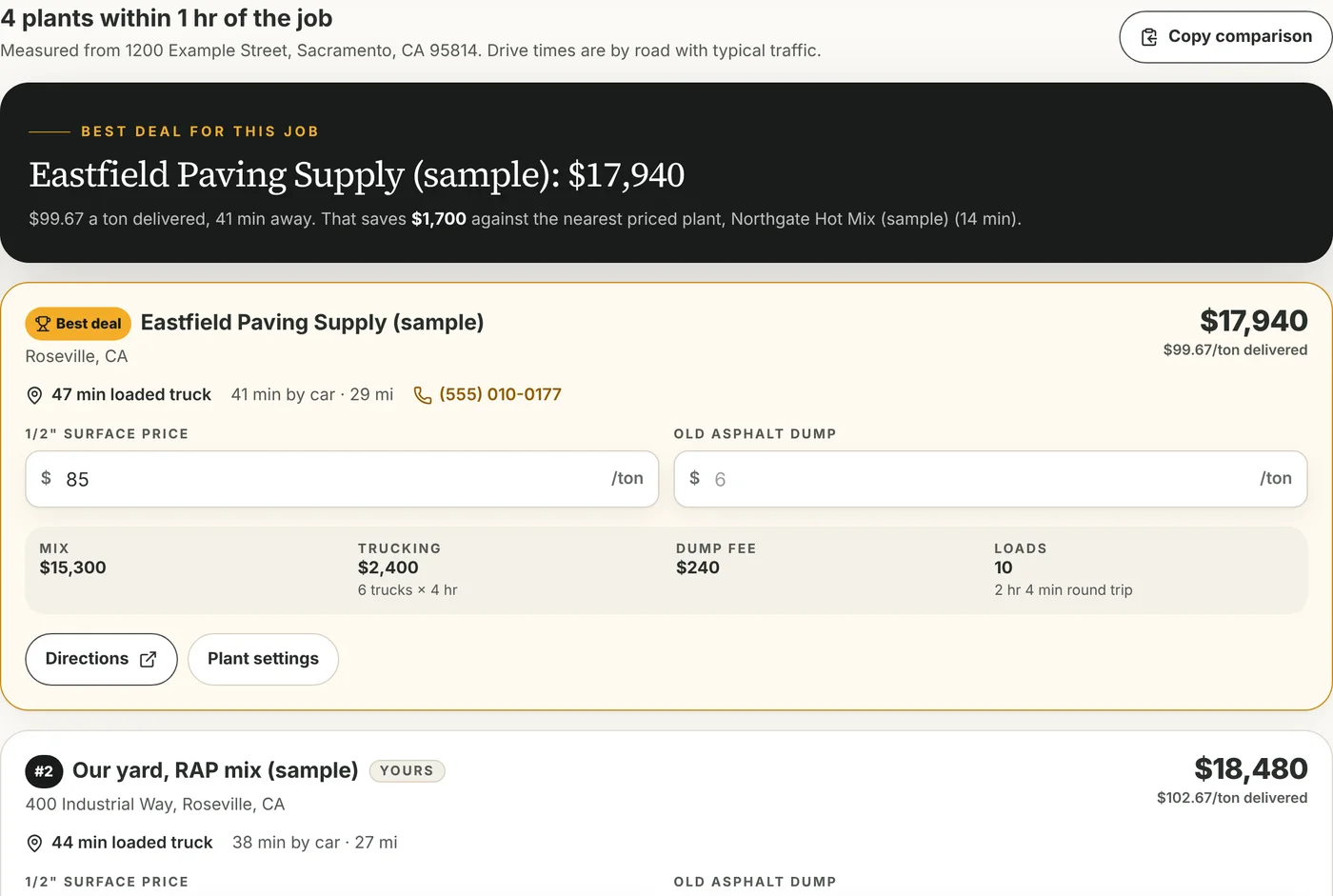
The banner at the top of the results names the cheapest plant for this job, its total, its delivered cost per ton and how far away it is. It also says how much it saves against the nearest priced plant, which is the comparison most of us make by default.
When the nearest plant is also the cheapest, it tells you that instead, so you can stop looking.

The banner: the cheapest plant, its delivered price per ton, and what it saves against the nearest. Step 6: See where the money goes on any plant
Every card splits its total into mix, trucking (trucks × hours billed), dump fee and loads, with the round-trip time per load. Under that, a runner-up shows how much more than the best deal it costs and how far its mix price would have to drop to tie. That figure is what you take into a call with a plant.
Warnings appear where they matter: a haul over an hour each way, a haul long enough for the mix to cool, or a truck count that leaves the paver waiting, with the number of trucks that would keep it moving.
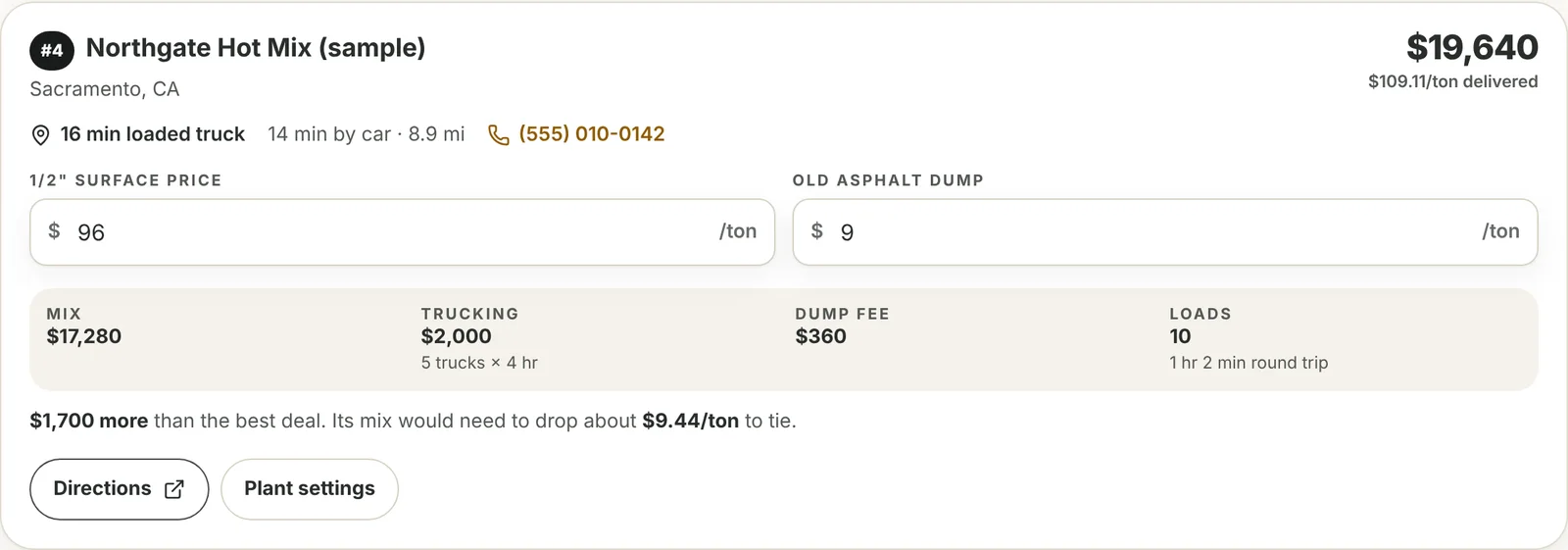
A plant's cost breakdown, and the price drop that would make it the cheapest. Tips
- Try changing the number of trucks in Trucking, fees and mixes. Fewer trucks cost less per hour but can leave the paver idle, and the planner shows the trade.
Step 7: Correct a plant with Plant settings
Open Plant settings on a card to fix what the directory has wrong or add what you know. Change location moves the plant (paste an address, or the coordinates Google Maps copies when you right-click a spot), and the next search measures from there.
Tick This plant does not take old asphalt and it drops out of any job with a dump, rather than quoting a dump fee it can't charge. Add a private note (scale hours, gate, who to call). Hide this plant from my searches removes one you never buy from; hidden plants are listed lower on the page with a Show again button.
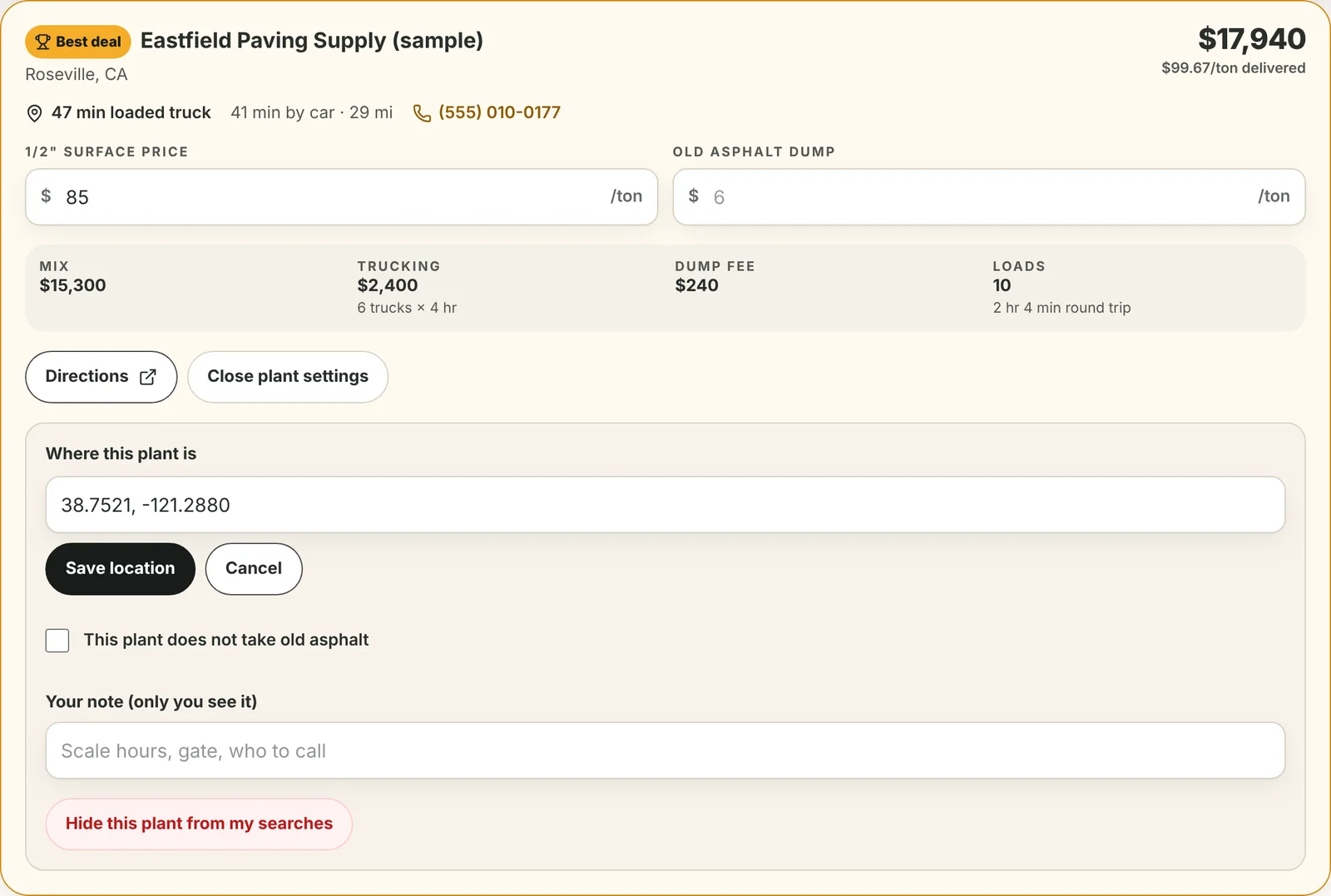
Plant settings: location, old asphalt, a private note, and hide. Tips
- After moving a plant, search again. Its drive time is only re-measured on a new search.
- Your notes, edited locations and hidden plants are private to your account.
Step 8: Add a plant the directory doesn't have
Under Your plants, add your own yard, a supplier you buy from, or any plant that is not in the directory. Give it a name, an optional phone number, and an address or coordinates. It is measured on the next search, ranked like any other plant, and keeps its prices from job to job.
You can keep up to 30 of your own plants on a listing plan (10 on the standalone subscription).
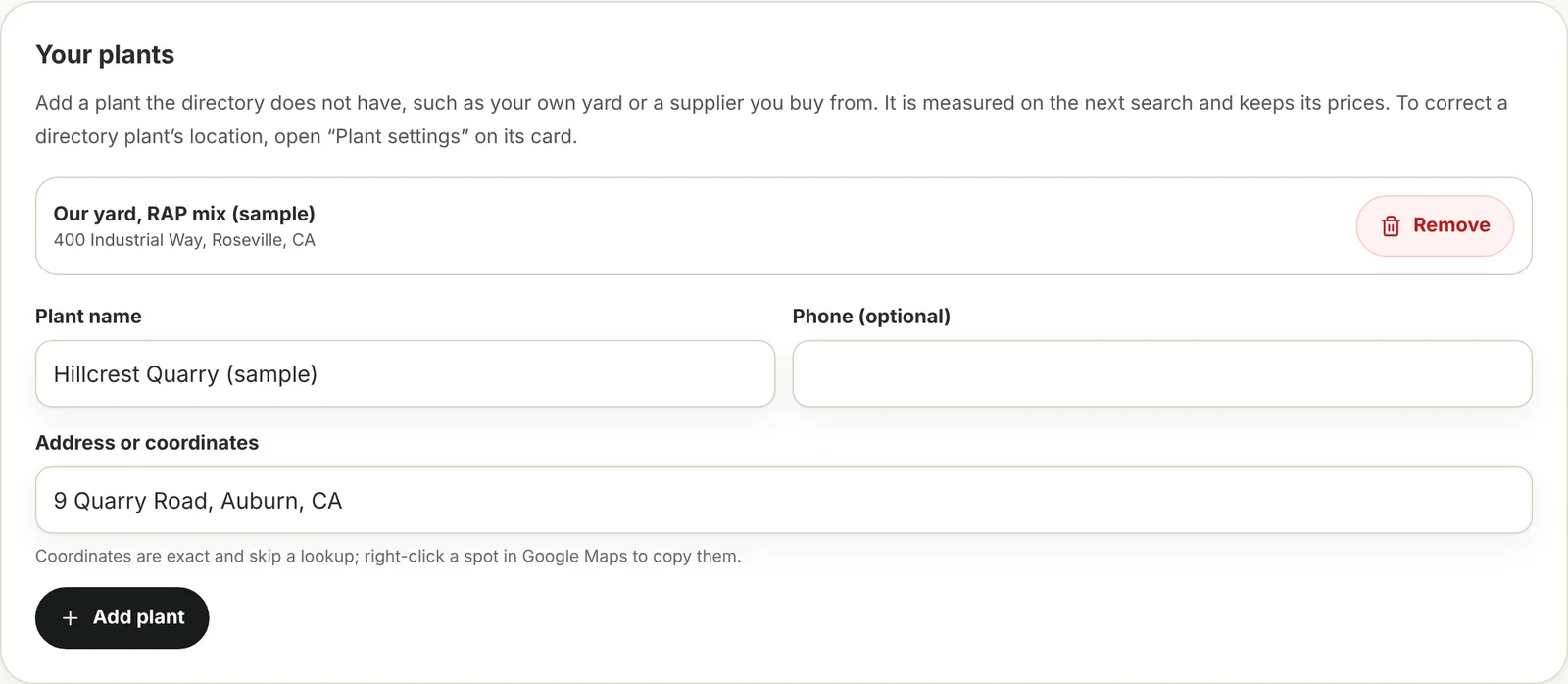
Your plants: add your own yard or a supplier the directory is missing. Tips
- Coordinates skip an address lookup and are exact, which helps for a yard on an unmarked road.
Ready to compare plants for your next job?
Included free with a Pro, Featured or Sponsored listing, or $14.99/month ($149/year) on its own.
Open the Haul PlannerOn a phone or tablet
The Haul Planner is built to be used from a truck cab or a job trailer. It is laid out for a phone with large, easy-to-tap fields, and it installs like an app so it opens full-screen from your home screen.
In Chrome or Edge, use the Install as an app button at the top of the tool. In Safari on an iPhone or iPad, tap Share, then Add to Home Screen. Once installed, the button disappears. It still needs a connection to measure a new job site; a job you have already searched reopens free.
How the total is calculated
The planner is transparent about its arithmetic so you can check it against your own. For each plant:
- Mix
- Tons × your price per ton at that plant.
- Trucking
- Trucks × hours billed × your hourly rate. Hours billed is the longer of the delivery time and the paver's time, and never less than your hauler's minimum.
- Old asphalt
- Tons to dump × that plant's dump fee. A negative fee is a credit. A plant marked as not taking old asphalt is not ranked on a job with a dump.
Loads are the tons divided by tons per truck, rounded up. A truck's round trip is loading, the drive out, unloading at the paver and the drive back; the drive uses the car time stretched by your truck-speed percentage. The planner then uses as many trucks as keep the paver working without a gap, up to the most you said you would run. If you cap the trucks below that, the paver waits and the job takes longer, and the trucking line reflects it.
What it leaves out: your crew's idle time, fuel, and tax. The old asphalt rides back empty on the return leg, so it adds no trucking. Treat the total as a way to compare plants against each other under the same assumptions, not as a figure for a bid.
Limits and plans
Every plan has limits, because each new job-site search is a paid lookup. Opening a job you have already searched, and every price, rate and ranking change after the search, is free and never counts.
A Pro, Featured or Sponsored listing includes the tool at no extra cost: 15 a week on Pro, 20 on Featured, 30 on Sponsored new job sites, with plants up to 90 minutes out, 40 measured per search, 30 plants of your own and 12 mixes.
The standalone subscription, for an account with no listing, allows 10 new job sites a week, plants up to 60 minutes out, 25 measured per search, 10 plants of your own and 6 mixes.

If something doesn't work
- The address can't be placed
- The message says what is missing. Usually it is the state or the city: use a street address with its city and state, such as "1200 Main St, Springfield, IL", or a ZIP code. A city or ZIP code works but measures from its center.
- No plants found
- Search within a longer time, or add a plant you buy from under Your plants. The directory only lists plants that make hot mix.
- Weekly limit reached
- A new job site opens again as the week rolls over. A job you have already searched still opens free, and you can keep entering prices on it.
- A plant shows "enter a price"
- It has no price for the selected mix. Type your price per ton on its card and it joins the ranking. Prices are saved per mix.
- A plant is missing
- You may have hidden it. Look under Hidden from your searches near the bottom of the page and press Show again, then search again.
- I moved a plant and its time didn't change
- Plants are re-measured on the next search. Press Search again; the notice "Plants changed. Search again to measure them." shows while one is waiting.
- "Drive times cannot be measured right now"
- A temporary problem on our side. Wait a few minutes and try again; jobs you have already searched are unaffected.
- My changes aren't saving
- Changes save automatically a moment after you stop typing, when you have a connection. If you reach your plan's plant or mix limit, remove one before adding another.
- The tool isn't included in my account
- It comes with a Pro, Featured or Sponsored listing, or as a standalone subscription. See the Haul Planner page to subscribe.
Haul Planner: common questions
What is the Haul Planner?
A tool for asphalt contractors that compares the hot mix plants around a job site by delivered cost: your price per ton, trucking billed by the hour, and old-asphalt dump fees, using road drive times from the job site.
Does it tell me what a plant will charge?
No. Plant prices come from you, from quotes you have received or what you have paid. The planner does the drive times, the trucking arithmetic and the ranking.
How much does the Haul Planner cost?
It is included free with a Pro, Featured or Sponsored listing. On its own it is $14.99/month or $149/year, with smaller limits: 10 new job-site searches a week.
How many job sites can I search?
15 a week on Pro, 20 on Featured, 30 on Sponsored for new job-site addresses each week, and 10 a week on the standalone subscription. Reopening a job you have already searched is free.
How are the drive times measured?
By road, from the job-site address to each plant, with typical traffic and for a passenger car. The planner stretches that for a loaded truck by a percentage you set. It never uses straight-line distance.
Can I add my own plant or yard?
Yes. Add it by address or coordinates under Your plants. It is measured on the next search, ranked like any other plant and keeps its prices. Up to 30 on a listing plan, 10 on the standalone subscription.
Is my pricing private?
Yes. Your prices, rates, notes and the plants you add are saved to your own account and are not shown on any public page or to any other company.
Can I use it on my phone?
Yes. It is laid out for a phone and installs like an app: Install as an app in Chrome or Edge, or Share then Add to Home Screen in Safari on an iPhone or iPad.
A comparison aid, not a quote: The Haul Planner is a comparison aid, not a quote. Plant prices, hauler invoices and real drive times (traffic, scales, queues at the plant) all differ from what is entered. The screenshots on this page use sample data and fictional plants; none shows a real price. Confirm price, load-out hours and mix availability with the plant before you commit a job.